 Taalk Help Center
Agent Behaviors: Voice and Behavior Settings
These settings control how your agent takes turns in a conversation: who talks first, how fast it answers, whether callers can cut in, and what it does when the line goes quiet.
Go to Outreach › AI Agents › Agents, open an agent, and click Voice and behavior under Configuration. Change a setting, then click Save in the row.
All settings
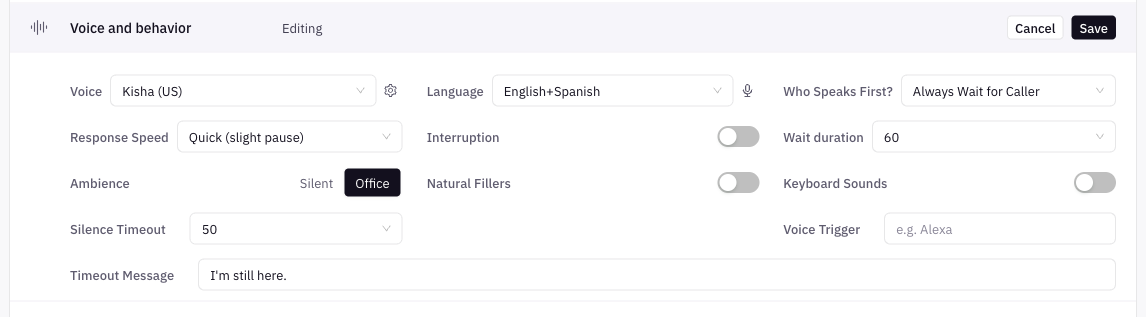
| Setting | Options | Default | What it does |
|---|---|---|---|
| Voice | Voice list, plus the gear for Voice Tuning | (none) | How the agent sounds. See Voice and Persona. |
| Language | English, Spanish, English+Spanish | English | The language the agent speaks and listens for. See Multi-Language Agents. |
| Who Speaks First? | AI Speaks First, Always Wait for Caller, Wait on Inbound Only, Wait on Outbound Only, Wait for Keyword Trigger | AI Speaks First | Whether the agent opens the call or waits for the other person. |
| Wait duration | 1, 2, 3, 5, 10, 15, 30 Seconds, Never | Never | Shows only when the agent doesn't speak first. How long it waits for the caller before it speaks anyway. Never means it keeps waiting. |
| Response Speed | Instant (may interrupt), Quick (slight pause), Normal, Patient (waits longer) | Normal | How long the agent waits after the caller stops talking before it answers. |
| Interruption | On / Off | Off | Lets the caller cut the agent off mid-sentence. |
| Ambience | Silent, Office | Silent | Background sound during the call, so the agent sounds like it's in a real room. |
| Natural Fillers | On / Off | Off | Adds "um" and "uh" between sentences. |
| Keyboard Sounds | On / Off | Off | Plays typing sounds while the agent is thinking, like someone looking something up. |
| Silence Timeout | Default (blank), Immediate, After 2 attempts to After 5 attempts | Default | How many times the agent tries to re-engage a silent contact before hanging up. |
| Timeout Message | Text | (none) | Shows once you pick a Silence Timeout. What the agent says each time the contact stays silent, for example "Hello? Are you still there?" |
| Voice Trigger | A keyword, up to 10 characters | (none) | Pause and resume the agent with a spoken keyword, like a smart assistant (for example "Alexa"). |
| Boosted Keywords | Words, as Word:weight |
(none) | Under the microphone icon next to Language. See below. |
Who Speaks First?
| Option | Use it when |
|---|---|
| AI Speaks First | Most outbound campaigns. The agent greets the person as soon as they answer. |
| Always Wait for Caller | You want the other person to say "hello" first on every call. |
| Wait on Inbound Only | The agent handles both directions, and you want callers who dial in to speak first. |
| Wait on Outbound Only | The opposite: wait on calls you place, greet first on calls you receive. |
| Wait for Keyword Trigger | The agent stays quiet until it hears its Voice Trigger keyword. |
[Confirm] Wait for Keyword Trigger waits for the keyword set in Voice Trigger.
Response Speed and Interruption
| Response Speed | Behavior |
|---|---|
| Instant (may interrupt) | Fastest response. Best with Interruption off. |
| Quick (slight pause) | Answers quickly with a short, natural pause. |
| Normal | Balanced pace for most conversations. |
| Patient (waits longer) | Listens longer before answering. Good for complex topics or callers who pause a lot. |
Turning Interruption on locks Response Speed to Instant. The Response Speed list greys out and shows Instant (may interrupt). Turn Interruption off to pick another speed.
Which to use:
- Callers get talked over, or the agent answers before they finish: try Patient, with Interruption off.
- Long pauses feel awkward: try Quick.
- Callers want to cut in (for example to say "not interested"): turn Interruption on.
Silence Timeout
- Pick how many tries the agent makes: Immediate or After 2 to After 5 attempts.
- Type a Timeout Message. The agent says it each time the contact stays silent.
- After the last try, the agent hangs up.
Leave it on Default to keep Taalk's standard behavior.
[Confirm] What Default and Immediate do on a live call (the engine decides this).
Boosted Keywords
Boosted Keywords help the agent hear names, brands and jargon it might mishear.
- Click the microphone icon next to Language. Listening & Recognition opens.
- In Boosted Keywords, add a word with a weight, for example
Halo:3. Suggested words are yes, no, sí and aló. - Click Save in the row.
Add only words the agent actually mishears. Test with Roleplay after each change.
Settings that stay per agent in a group
When you save a grouped agent with Apply to all agents in this group, these settings are not copied to the other agents: voice and Voice Tuning, Ambience, Natural Fillers, Keyboard Sounds, Boosted Keywords, Interruption, Response Speed, Who Speaks First?, Wait duration and Voice Trigger. Language, Silence Timeout and Timeout Message are copied. See Agent Groups.
Related
- Test Your Agent: hear each change before it goes live.
- Agent Optimization Guide: how to test one change at a time.