 Taalk Help Center
AI Agents Overview
An AI agent is the voice that calls your contacts, answers your inbound calls and transfers interested people to your team. This article shows where agents live and how the agent page is laid out.
Go to Outreach › AI Agents › Agents.
The Agents list
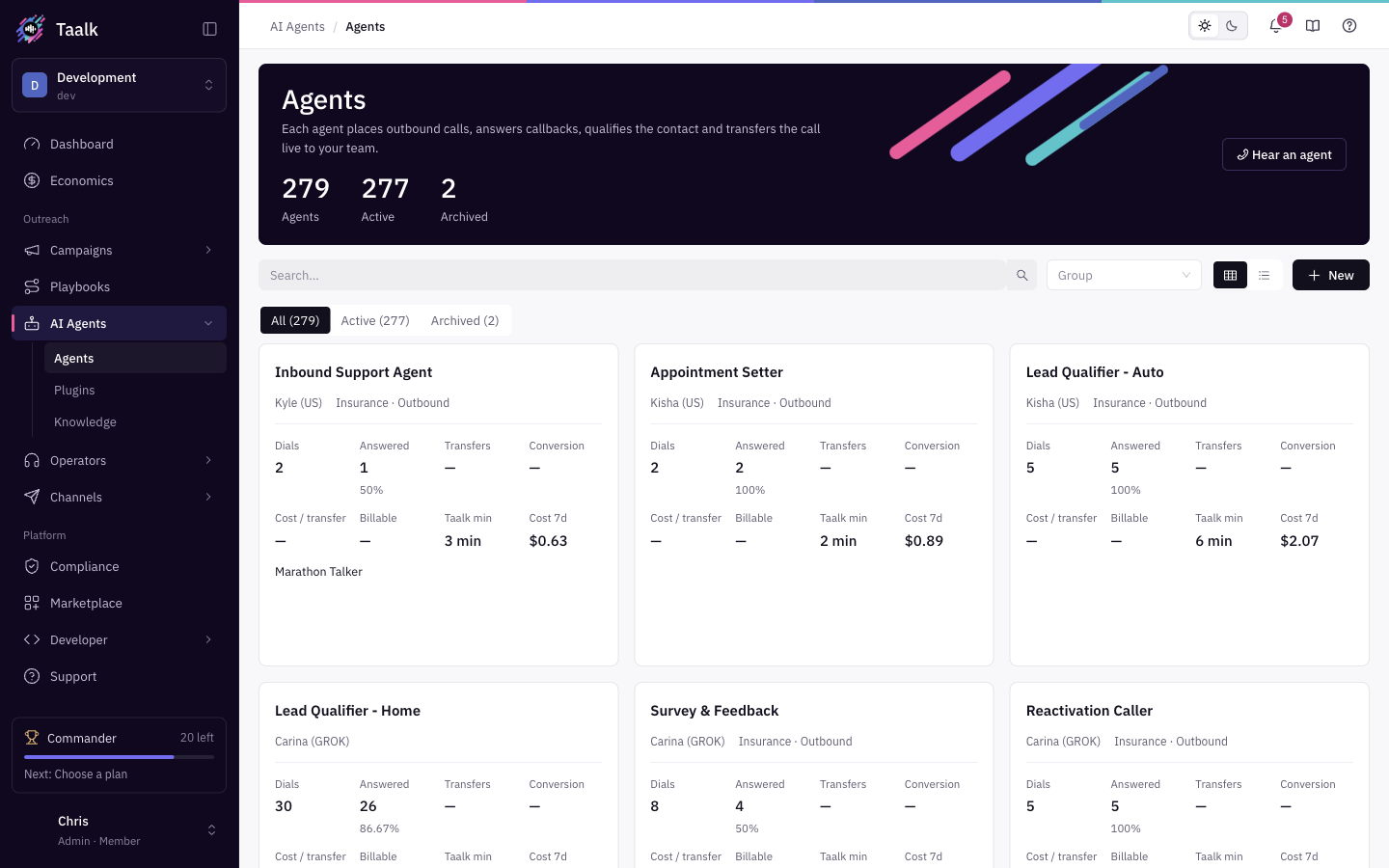
| Item | What it does |
|---|---|
| Hear an agent | Opens a gallery of sample agents. Pick one and it calls your phone, so you can hear a Taalk agent before you build your own. |
| All / Active / Archived | Filters the list. Each tab shows a count. Archived agents only show under Archived. |
| Group | Shows only the agents in one agent group. See Agent Groups. |
| Search... | Type a name and press Enter. |
| Card view / List view | Switches the layout. |
| + New | Opens the new agent wizard. See Create an AI Agent. |
Each card shows the agent's name, voice and tags, and its last 7 days: Dials, Answered, Transfers, Conversion, Cost / transfer, Billable, Taalk min and Cost 7d. It also lists the campaigns and playbooks that use the agent. An agent with no calls shows Not deployed. Add to a campaign to see performance.
The icons at the bottom of a card open the agent, archive or unarchive it, and delete it.
The agent page
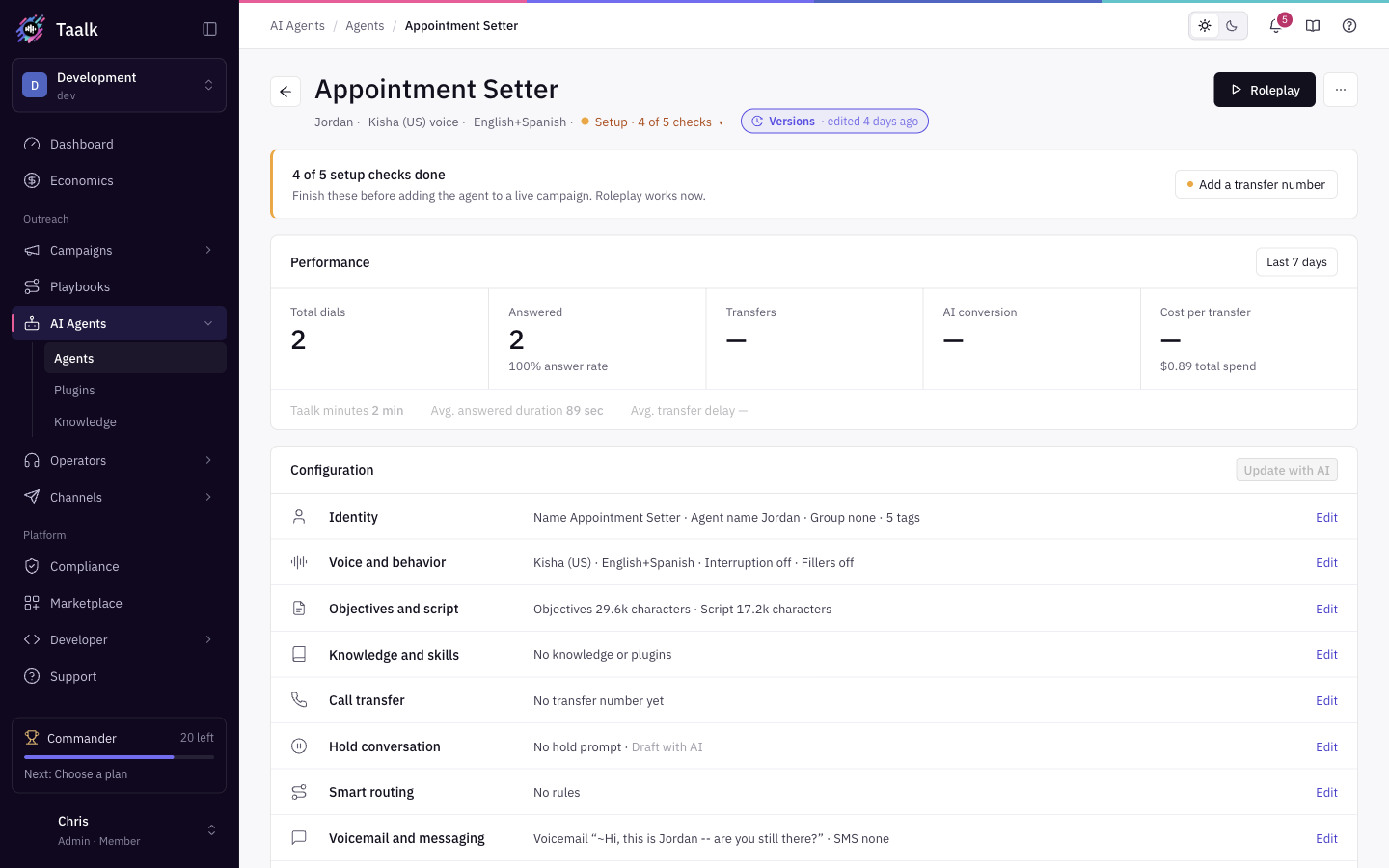 Click an agent to open it. The page has five parts, top to bottom.
1. Header
- The agent's name, then its Agent Name, voice and language.
- The readiness status, for example Setup · 3 of 4 checks. Click it to see what's missing.
- The Versions pill, with when the agent was last edited. It opens the version history. See Agent Versions.
- Locked, when the agent is locked.
- Roleplay calls your phone so you can talk to the agent. See Test Your Agent.
- The … menu: Copy agent ID, Version history, Duplicate..., Lock / Unlock, Archive / Unarchive and Delete. See Lock, Duplicate, Archive and Delete Agents.
2. Readiness
Until every check passes, a banner lists what's left: Finish these before adding the agent to a live campaign. Roleplay works now.
| Check | Passes when |
|---|---|
| Agent named | Agent ID in Identity is filled in |
| Voice selected | A Voice is picked in Voice and behavior |
| Objectives defined | Objectives has text |
| Script written | Script and logic has text |
| Transfer configured | A transfer number or AI agent is set. Only checked when your plan includes transfers. |
Click an item to jump to the section that fixes it.
3. Used in
Chips for every campaign and playbook that uses this agent: as the outbound agent, inbound agent, breaktime or after-hours agent, or an area agent. Click a chip to open it.
4. Performance
Numbers for the Last 7 days: Total dials, Answered, Transfers, AI conversion and Cost per transfer, with Taalk minutes, Avg. answered duration and Avg. transfer delay below them. Depending on the data you also see:
- A/B group: how this agent compares with the other agents in its group.
- Calls by campaign: which campaigns it worked in.
- Post-call insights: the top answers from call analysis.
Before the agent makes calls you see No calls in the last 7 days. What each number means: Metrics Glossary.
5. Configuration
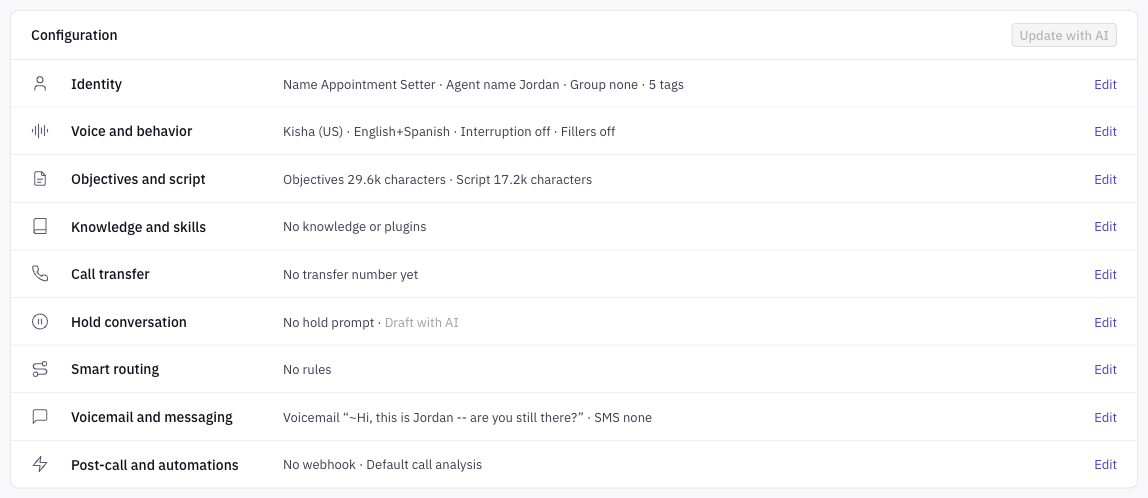
Nine sections. Each row shows a one-line summary. Click a row to open it.
| Section | What it holds |
|---|---|
| Identity | Agent ID, Agent Name, Group, Memo, Tags. Agent Identity |
| Voice and behavior | Voice, language, who speaks first, response speed, interruption and more. Voice and Persona, Agent Behaviors |
| Objectives and script | What the agent is for and what it says. Objectives and Scripts |
| Knowledge and skills | Knowledge it can look up and plugins it can run. Agent Knowledge, Plugins |
| Call transfer | Where qualified calls go and how. Transfers and Call Flow |
| Hold conversation | What the agent says while a transfer connects. Transfers and Call Flow |
| Smart routing | Send calls to different numbers by rule. Smart Routing |
| Voicemail and messaging | Voicemail script and the text sent during a call. Voicemail, SMS Messaging |
| Post-call and automations | Webhook and call analysis after each call. Event Webhooks |
Call transfer and Hold conversation need a plan with warm transfers, and Smart routing needs a plan with transfers. On other plans the section shows an upgrade message (Go live on a free workspace).
Saving changes
- Click a section row. It shows Editing, or Editing · unsaved changes once you change something.
- Click Save in the row, or Cancel to undo.
- If you made changes with no row open, a bar appears at the bottom: Unsaved changes, Discard, Save changes.
If the agent is in a group, saving asks Apply to all agents in this group or Only update this agent. See Agent Groups.
If someone else saved the agent while you were editing, you see The Agent Script is modified by other user. Review both versions of the script, then save again.
What the agent page can't do (yet)
- Update with AI and Draft with AI are shown but marked Coming soon.
- A locked agent can't be saved. Unlock it first from the … menu.