 Taalk Help Center
Objectives and Script
The Objectives and script section is where you tell your AI agent who it is, what it's trying to do and how the conversation should go.
Go to Outreach › AI Agents › Agents, open an agent, then click Edit on Configuration › Objectives and script.
The two panes
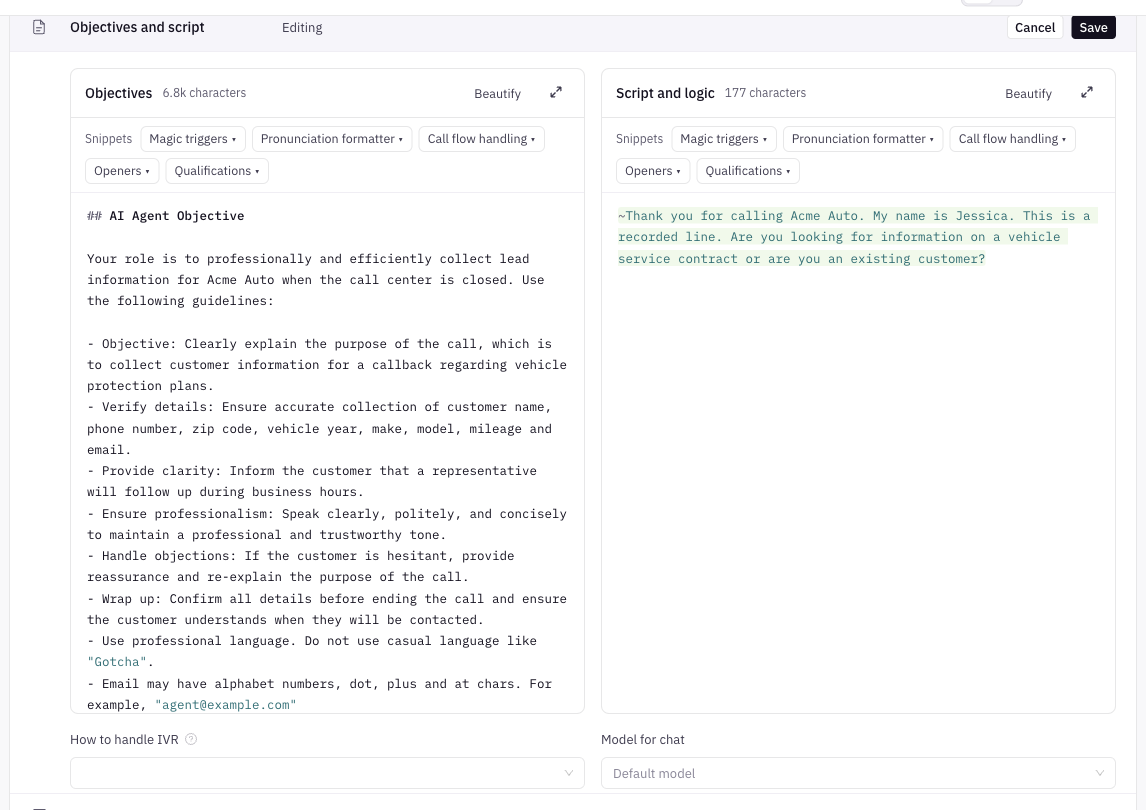
| Pane | What goes in it | Limit |
|---|---|---|
| Objectives (required) | The agent's character, its goal and the rules it must follow. If it's empty you can't save: "You haven't shaped the agent's character". | 35,000 characters |
| Script and logic | How the agent should communicate, step by step: openers, questions, branches, objection handling and closing. | 35,000 characters |
Each pane shows a live character count. The voicemail message is not written here. It has its own field, Voicemail Script, under Voicemail and messaging (see Voicemail).
Write your objectives and script
- In Objectives, describe the agent: who it represents, why it's calling, what counts as success and anything it must never do.
- In Script and logic, lay out the call flow. Start from a snippet if you like (see below).
- Click Beautify to tidy the spacing.
- Click Save on the section (or Save changes in the bar at the bottom of the page).
- Click Roleplay at the top of the agent page to try it (see Testing your agent).
A suggested structure
There is no required format. This layout works well for most agents:
## Opener
~Hi {name}. This is {agentName} with Acme Insurance on a recorded line.
~Do you have a moment?

*Pending Caller Feedback*

## Qualification
~Do you own your home?

*Pending Caller Feedback*

[if they confirm they own the home]
~Great. I just have one more question.
[if they rent]
~Thanks for letting me know. Unfortunately we can't help with rentals. Have a great day! Bye.-

## Transfer
~Perfect. I will transfer the call now.
##headings split the script into parts. In the maximized editor they also build the Outline.- Lines starting with
~are spoken lines. Don't put a space after the~(the editor flags~ textas wrong). Keep one short thought per line. *Pending Caller Feedback*tells the agent to stop and wait for an answer. Put it after every question.{name}and{agentName}are variables (see Script Variables and Formatting).
Conditional instructions with [ ]
Text in square brackets is a note to the agent, not something it says. Use it for conditions and instructions:
[if they say they are not interested]
~I understand. Just so you know, the review is free. Would that help?
[if still not interested, end the call politely]
Brackets are not random choices. The agent follows the instruction that fits what the caller said. Spell out the condition ("if they confirm they own the home"), not just "if yes".
For logic that should be decided before the call starts, such as inbound vs outbound, use /*@if … */ blocks. See Script Variables and Formatting.
Snippets
Under each pane, the Snippets bar inserts ready-made text at your cursor. Hover an item to see what it does.
| Group | What's in it |
|---|---|
| Magic triggers | Pause and Wait for Response, Transfer to Human, Hangup / Conclude a Call, Temporary AI Hold |
| Pronunciation formatter | Formatters such as uppercase, spelling, expand_address, us_state and date formatting |
| Call flow handling | Inbound/outbound branches, business-hours and after-hours branches, SMS and email branches, Schedule Callback, Handle Do-Not-Call |
| Openers | Outbound Direct, Outbound Soft, Inbound, Gatekeeper / Receptionist, Bidirectional Opener |
| Qualifications | Ask but Don't Disqualify, Ask and Disqualify, Multi-Step Qualification, Objection Handling |
Replace anything in <angle brackets> with your own words. See Magic Triggers for the action phrases.
The editor
- Color coding: variables, spoken text, logic blocks, notes in
[ ]and trigger phrases each get their own color, so you can see which lines will transfer, hang up or send a text. - Beautify: adds blank lines before headings and lists, and pretty-prints JSON. If nothing changes you'll see "Already formatted".
- Maximize (the arrows icon): opens a full-screen editor with three views (Objectives, Script and logic, Side by side), an Outline of your
##headings, a color legend and find (Ctrl+F or Cmd+F). Click Collapse or press Esc to go back. You can Save or Cancel from there.
When someone else changed the agent
If another person saved the agent while you were editing, a read-only copy labeled Change from others appears under the pane, titled "(other version)". Compare the two, copy what you need into your pane, then save.
How to handle IVR
How to handle IVR tells the agent what to do when it reaches an automated phone menu.
| Option | What it does |
|---|---|
| Inherit from campaign | Uses the campaign's IVR Navigator setting (Settings › Outbound setup) |
| Auto | The agent navigates phone menus on its own |
| Custom, from objectives and script | The agent follows the IVR instructions you wrote in the panes |
[Confirm] How Auto navigates menus and how Custom instructions are applied is decided by the voice engine.
Tips
- Write numbers the way they should be spoken ("seven PM", "four guests").
- If a name is mispronounced, spell it the way it sounds.
- Avoid bold text and markdown formatting in spoken lines.
- Test with Roleplay after every change, especially transfers and hang-ups.
Troubleshooting
| Problem | Fix |
|---|---|
| Can't save: "You haven't shaped the agent's character" | Objectives is empty. Add a description. |
| The agent talks over the caller | Add *Pending Caller Feedback* after each question. |
| The agent hangs up too early | A line contains a hang-up phrase such as "bye" or "have a great day". Check the color coding. |
| Transfer never happens | The transfer line isn't highlighted as a trigger. Use the Transfer to Human snippet wording. |