 Taalk Help Center
Playbook Plays and Timing
Plays are the touch points in a playbook's timeline. This article covers adding plays, setting when each one runs, repeating the playbook, and testing a play.
Go to Outreach › Playbooks and open a playbook.
The Plays timeline
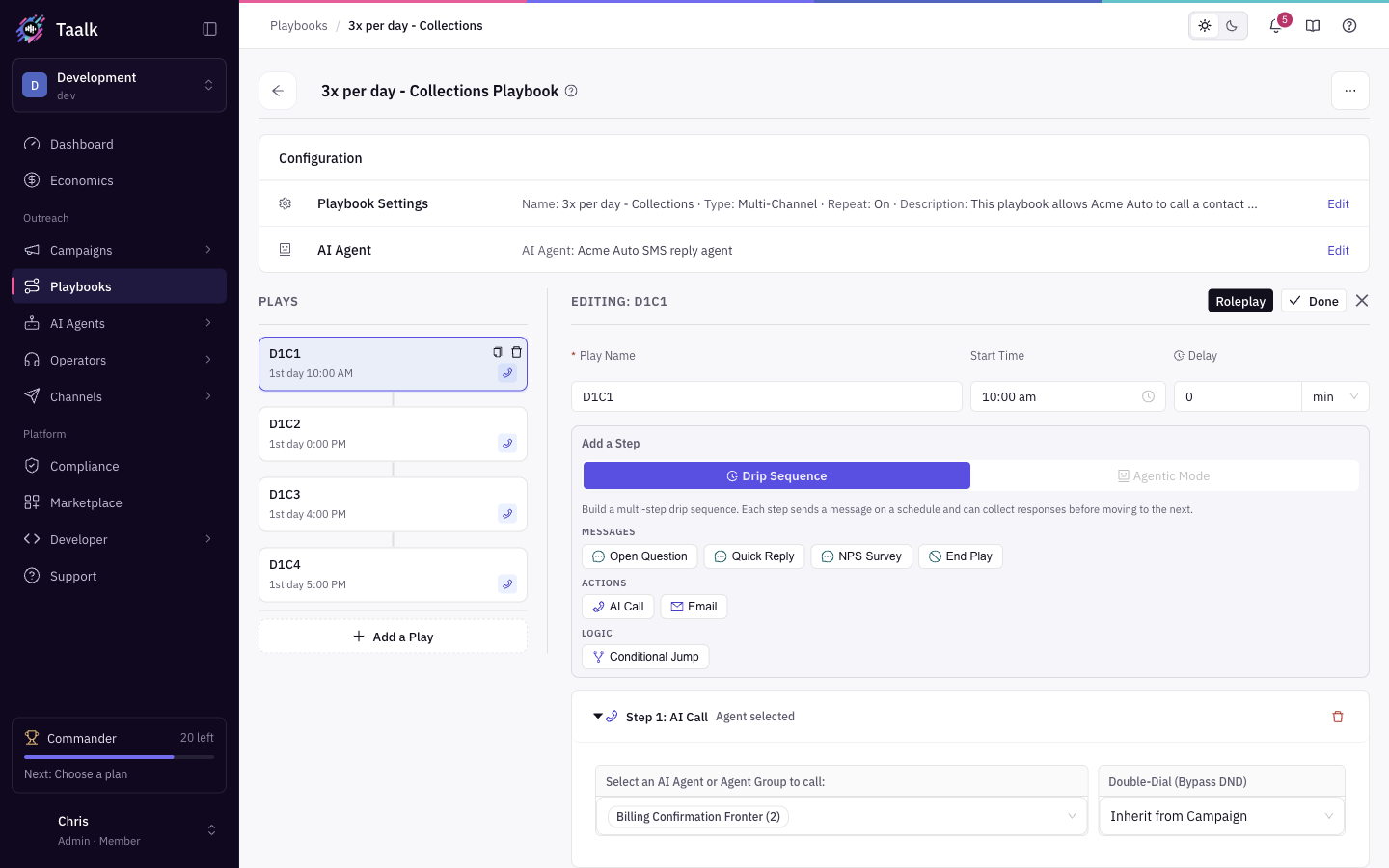 The left panel, Plays, lists the plays in the order they run. Each one shows:
- the play name
- an estimated delivery time, such as "1st day 8:00 AM"
- the delay, if any
- channel badges for call, text and email
| To | Do this |
|---|---|
| Add a play | Click Add a Play. It is named "Play 1", "Play 2" and so on, and opens for editing |
| Edit a play | Click it. The editor opens on the right as Editing: <play name> |
| Reorder plays | Drag a play up or down |
| Copy a play | Click the copy icon on the play. Edit the copy and save it |
| Remove a play | Click the delete icon on the play |
In the editor, click Done to save the play. On a new playbook, click Create playbook at the bottom to save everything.
Play fields
| Field | Default | What it does |
|---|---|---|
| Play Name | "Play N" | Required. Short names like "D1M1" (day 1, message 1) keep the timeline readable |
| Start Time | 8:00 AM | The time of day the play sends. Choose between 8:00 AM and 9:00 PM, in 15-minute steps |
| Delay | 0 | How long to wait after the previous play. Enter a number and pick sec, min, hr or day |
The Start Time limits follow the federal 8 AM to 9 PM calling window. State rules can be stricter; the campaign's TCPA Calling Hours setting handles those.
[Confirm] How Start Time and Delay combine when the delay ends outside the play's start time, and which timezone Start Time uses (C9).
Mode lock
Each play is either Drip Sequence or Agentic Mode. You pick the mode in Add a Step before adding the first step. Once the play has a step, the other mode is greyed out. To switch, remove the play's steps first, or add a new play. See Playbook Steps Reference.
At the end of each play, the editor shows what happens next:
| You see | Meaning |
|---|---|
| Next: <play> (after delay) | The next play runs after its delay |
| AI Agent takes over on reply | Agentic play: the playbook's AI Agent answers replies |
| End of Playbook | This is the last play |
| Playbook restarts from first play | Last play, with Repeat Play on End on |
Repeat Play on End
Repeat Play on End is in Configuration › Playbook Settings. When it is on, the playbook starts again from the first play after the last play finishes. An End Play step with Opt-Out on, or a Conditional Jump to OPT-OUT, takes a contact out instead.
[Confirm] When repeats stop: the campaign's Stop Condition, Max Retries, or never (C10).
Test a play (Roleplay)
You can run a single play against your own phone. The play must be saved first.
- Open the play in the timeline.
- Click Roleplay in the editor header.
- Fill in the dialog:
| Field | Notes |
|---|---|
| Contact Name | Required |
| Contact Number | Required. Include the country code, for example +1XXXXXXXXXX |
| Taalk Caller ID | The number to send from. Only numbers that can text are listed. Not shown on free workspaces |
| Test Contact Data | Optional JSON with contact fields, for example {"Taalk_Product": "Auto"} |
- Start the test. Taalk shows "The roleplay session (…) is created." Click View Live Session to watch it, or Done to close.
On free workspaces, tests use your sandbox balance and go only to your verified phone. See Is There a Free Trial?.
If the test fails with "Caller ID Issue Found", check the caller ID you picked. "Cannot call at the moment." means the test could not start; try again or contact support.