 Taalk Help Center
Plugins Overview
A plugin lets your agent act at set moments in a call: send lead data to your CRM, look a value up, or text the caller when something worked. Build a plugin once, then attach it to any agent.
Go to Outreach › AI Agents › Plugins.
How a plugin is built
A plugin is a list of Actions. Each action has three parts, shown as sections in the action editor:
| Section | What you set |
|---|---|
| What Triggers This Action | Action Name, When This Action Runs (the call event) and Action Type (Webhook or Lookup Table) |
| Action Setup | For a webhook: method, URL and body. For a lookup table: the table and how to match |
| Response Formatting | Success Message, Failure Message and, for most events, SMS on Success (Optional) |
The plugin itself has a Name, an Auth type, a Memo (required) and any HTTP Headers shared by all its actions.
Create a plugin with the wizard
- Click New plugin.
- Template: pick Lead Post (Webhook), Calendar Booking or DNC Checker, pick an item From the Marketplace, or click Start from scratch with default settings. The three templates fill in the name only; you add the actions.
- Identity: enter a Name and a Description.
- Actions: click Add an Action and fill in the action editor (below). Add as many as you need.
- Auth: choose the Authentication Type and add HTTP Headers if your endpoint needs them.
- Review: check the summary and click Create Plugin.
Set up an action
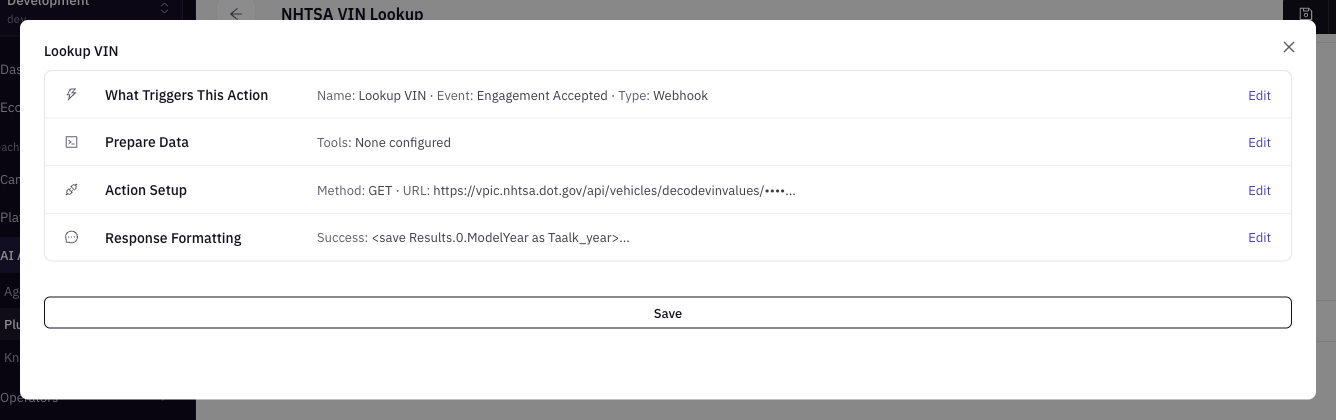
- In What Triggers This Action, name the action (for example "Post Lead to CRM").
- Pick When This Action Runs. The default is In Conversation. A short note under the field says when the event fires. For a lead post, Engagement Finished is the usual choice.
- Pick the Action Type:
- Webhook (default): Taalk sends an HTTP request to your URL.
- Lookup Table: Taalk matches a value against a table you provide. No external system needed.
- In Action Setup, for a webhook:
- HTTP Method: GET (default), POST, PATCH, DELETE or PUT.
- Endpoint URL: your URL. Placeholders such as
<contact.phone>are filled in per call. - Request Body (JSON): up to 5,000 characters, for example
{ "phone": "<contact.phone>", "result": "<params._gpt.outcome>" }.
- In Response Formatting, write what the agent is told when the action succeeds or fails. Use
<result.field>to quote a value from your endpoint's response, for example "Appointment booked for <result.date> at <result.time>". - Optional: write an SMS on Success (Optional) message to text the contact when the action succeeds.
- Click Save in the action editor.
Saving an action also saves the plugin. Click an action row to edit it, or the trash icon to remove it.
For every event, field and limit, see the Plugin Actions Reference.
Webhook or Lookup Table?
| Use | When |
|---|---|
| Webhook | Data has to reach, or come from, another system: CRM, calendar, DNC service, your own API |
| Lookup Table | You have a fixed list to match against, such as ZIP code to region or product to price. Paste or upload a CSV, or point at a field from the call |
Authentication
| Option | What it does |
|---|---|
| Custom HTTP Headers (default) | Sends the headers you add under HTTP Headers, for example Authorization: Bearer … or an API key header |
| GHL OAuth2 Token | Authenticates with a GoHighLevel OAuth token instead of your own headers. See GoHighLevel Integration |
Calendly plugins use the Calendly API key saved for your workspace and show Calendly as their type in the list. See Calendly Integration.
Keep secrets hidden
Saved Endpoint URL values and header values are masked. Click Reveal to see or edit them. Anyone who can open the plugin can reveal them, so use a key with only the access the plugin needs.
Attach a plugin to an agent
- Go to Outreach › AI Agents › Agents and open the agent.
- Open Configuration › Knowledge and skills.
- In Plugins, pick one or more plugins.
- Click Save.
The plugin page shows Used by with the agents using it. From the menu next to Save, Show Agents Using This Plugin lists them all, and Delete removes the plugin.
Plugins from the Marketplace
Plugins installed from the Marketplace work the same way. If the subscription behind one lapses, the plugin shows Subscription Suspended and can't be edited until it is renewed.
Advanced options for developer users
Developer users also see a Prepare Data section (Regex Triggers, AI Data Extraction, JS Data Processor) and a Function event. Taalk support can turn on developer access. See the Plugin Actions Reference.
Troubleshooting
| Problem | Check |
|---|---|
| "A plugin must have at lease 1 trigger." | Add at least one action before saving |
| "Webhook address is required." | Fill in Endpoint URL |
| The action never runs | The plugin is attached to the agent, and When This Action Runs matches an event that happens on your calls |
| Your endpoint gets empty values | The placeholder names match the data, for example <contact.phone> |