 Taalk Help Center
Campaign Basics
A campaign works one contact list with one AI agent (or playbook), on the schedule and caller IDs you set. This article covers the Campaigns list, creating a campaign, the campaign page and its tabs, and where each setting lives.
Go to Outreach › Campaigns › Campaigns.
The Campaigns list
| Item | What it shows |
|---|---|
| Banner | Counts of Campaigns, Running and Paused |
| All / Running / Paused | Filters the list |
| Sort | Newest, Oldest, Most Contacts, Fewest Contacts, Last Run, Name A-Z, Name Z-A |
| Campaign card | Name, last run, dials per hour, contact count, estimated cost for the last 7 days, caller ID, working days and hours |
| Contact health bar | Share of fresh (not yet attempted) contacts, with badges such as Exhausted, Low fresh, dial failed and Stalled |
| Card buttons | Launch, Pause or Resume; AI Diagnostic (needs the AI Builder add-on); Delete |
Click a card to open the campaign.
Create a campaign
- Click New. The New Campaign wizard opens.
- Template: pick a starting point, or click Start from scratch with default settings.
- Name & Schedule: enter a Name and set your calling hours.
- Strategy & Dialing: choose the Outreach Mode, the agent or playbook, and caller IDs.
- Compliance & Safety: contact restrictions, campaign economics, group and fuse.
- Review & Create: fix any open setup checks, then click Create Campaign.
The campaign opens on the Contacts tab so you can add contacts. See Uploading Contacts.
| Template | Outreach Mode | Max Retries | Retry Interval | Dials per Hour | Stop Condition |
|---|---|---|---|---|---|
| Standard Voice Campaign | Voice-Only | 8 | 4 hours | 2,000 | Call is Answered by Human |
| High-Volume Voice Blitz | Voice-Only | 4 | 4 hours | 5,000 | Call is Answered by Human |
| Multi-Channel Nurture | Multi-Channel | 12 | 24 hours | 1,000 | Embedded Link is Clicked |
| Email-Only Campaign | Email-Only | 3 | 48 hours | 5,000 | Embedded Link is Clicked |
You can change every value later. Dials per Hour can't go above your plan's limit.
The campaign page
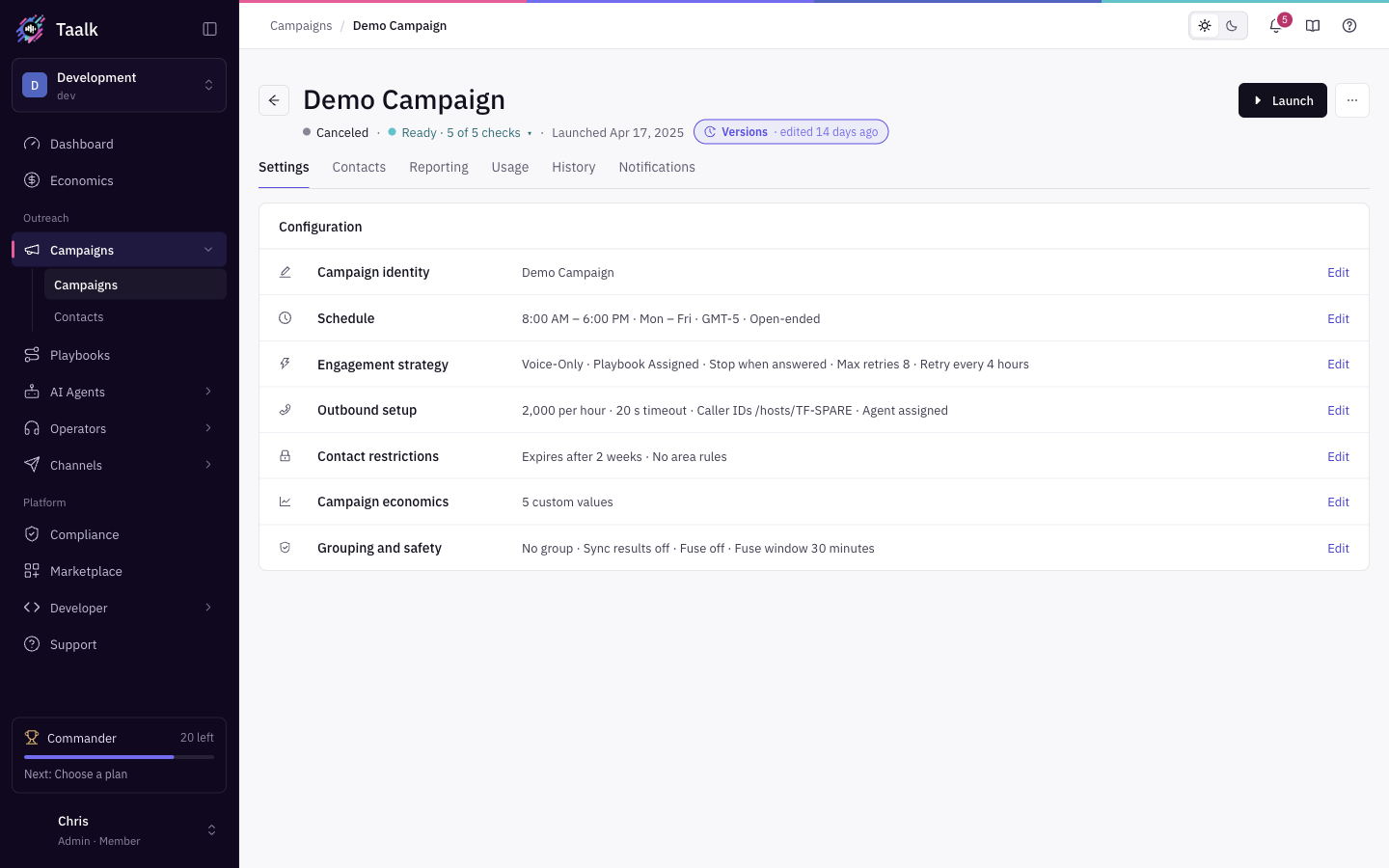 The header shows the campaign name and a status line:
- Run status: Running, Paused, Canceled or Completed. A campaign that has never run shows no status.
- Setup checks: Ready · 5 of 5 checks or Setup · 3 of 5 checks. Click it to jump to what's missing.
- Launched date, or Not launched.
- Versions pill with the time of the last edit. See Campaign Version History.
Run button
| Campaign state | Button | What it does |
|---|---|---|
| Not running | Launch | Opens the launch steps. See Launching a Campaign. |
| Running | Pause | Stops new dials. Contacts and results stay. |
| Paused | Resume | Continues the same run. |
Launch is greyed out while you have unsaved settings ("Save or discard your settings changes first").
The "..." menu
| Item | What it does |
|---|---|
| Duplicate | Copies the settings into a new campaign. See Campaign Cloning. |
| Copy campaign ID | Copies the ID for the API or support. |
| Cancel campaign | Shown while running or paused. Ends the current run now. Settings and contacts stay, and you can launch again later. |
| Delete | Removes the campaign. Contacts and call history stay in reports. This can't be undone. |
If you have view-only access, you can open every tab but can't launch, edit or delete.
The six tabs
| Tab | What's there |
|---|---|
| Settings | All campaign settings, grouped in sections (below) |
| Contacts | Your contact list, segments, upload and export. See Contacts Tab Overview. |
| Reporting | Results for the campaign. See Campaign Report. |
| Usage | What the campaign used and cost |
| History | Runs, status changes and settings changes. See Campaign History and Usage Tabs. |
| Notifications | Reports and alerts by email, Slack or webhook. See Campaign Notifications and Alerts. |
Settings at a glance
Open Settings, click Edit on a section, make your changes, then click Save. A save bar shows Unsaved changes with Discard and Save changes.
| Section | Main settings | Learn more |
|---|---|---|
| Campaign identity | Name, Internal Memo | |
| Schedule | Campaign Duration, Timezone, Start Time, End Time, break, Working Days | Campaign Scheduling |
| Engagement strategy | Outreach Mode, playbook, retries, Stop Condition, Max Concurrent Transfers, Voicemail Cooldown | Engagement Strategy, Retries, Double-Dial and Stop Conditions |
| Outbound setup | Dials per Hour, Ring Timeout, DNC Detection, IVR Navigator, TCPA Calling Hours, Caller ID Number, Outbound AI Agents, Inbound Call Agent, Breaktime Agent, AfterHour Agent | Dial Pace, Ring Timeout and Transfer Capacity, Campaign Caller IDs |
| Contact restrictions | Contact Expiration, duplicate-upload rules, area restrictions | Uploading Contacts |
| Campaign economics | Value per transfer and per SMS link (empty = workspace defaults) | Campaign Economics |
| Grouping and safety | Group, Share Results in Group, Safety Fuse Threshold, Fuse Window | Fuse Protection |
Some changes only apply on the next run. For big changes, pause the campaign first.
Quick answers
| You want to | Go to |
|---|---|
| Set Ring Timeout or IVR Navigator | Dial Pace, Ring Timeout and Transfer Capacity |
| Understand Keep Campaign Live or Exclude Contacts | Launching a Campaign |
| Stop calling a contact after a transfer | Retries, Double-Dial and Stop Conditions |
| Answer calls to your campaign number | Inbound Call Setup |