 Taalk Help Center
Campaign Scheduling
The schedule decides when a campaign is allowed to call: which dates, which hours, which days and in which timezone.
Go to Outreach › Campaigns › Campaigns, open a campaign, then Settings › Schedule › Edit.
Schedule fields
| Field | Default | What it does |
|---|---|---|
| Campaign Duration | Empty | Start and end date and time. Leave it empty to run until all contacts are done. |
| Timezone | Your browser's timezone | All schedule times follow this timezone. |
| Start Time | 8:00 AM | When dialing begins each day. |
| End Time | 6:00 PM | When dialing stops each day. |
| Break Start / Break End | No break | A daily pause. Click Add break time to show these, Remove break to clear them. |
| Working Days | Mon – Fri | Which days the campaign calls. |
Times are picked in 15-minute steps.
Set working days
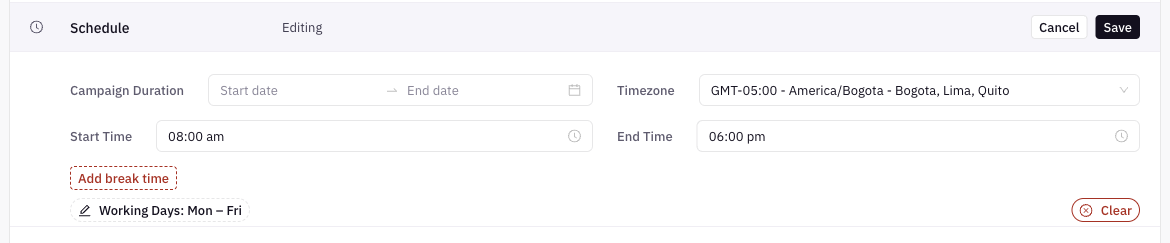
- Click the Working Days button (it shows a summary such as "Working Days: Mon – Fri").
- Tick each day the campaign should call.
- Optional: give a day its own start time, break and end time. Empty fields use the main Start Time, break and End Time.
- Click Save.
Clear removes the whole working-day schedule. With no schedule, there is no day-of-week limit, even though the button may still read "Mon – Fri".
Calling-hour rules
These live in other sections but work with your schedule.
| Setting | Where | What it does |
|---|---|---|
| TCPA Calling Hours | Outbound setup | On by default. Applies federal and state calling-hour limits on top of your schedule. If you turn it off, you are responsible for calling-hour compliance. |
| Add a Restiction for Specific Areas | Contact restrictions | Pick states or area codes and give them their own Start Time, End Time and Working Days. Use it when one area needs tighter hours than the rest of the list. |
Your schedule uses one timezone. TCPA Calling Hours is what protects contacts in other timezones. See Calling Hours.
[Confirm] The dialer applies TCPA Calling Hours using each contact's local time, and applies area restrictions by the contact's state or area code (C9).
Agents for breaks and after hours
Under Outbound setup:
| Field | What it's for |
|---|---|
| Breaktime Agent | The AI agent that answers calls to the campaign's number during your break. |
| AfterHour Agent | The AI agent that answers calls to the campaign's number outside your calling hours. |
[Confirm] Breaktime Agent and AfterHour Agent answer inbound calls (for example callbacks) to the campaign caller ID during the break and outside the daily window.
For numbers that aren't tied to a campaign, set these on the number itself. See Inbound Call Setup.
Warnings
| Message | Fix |
|---|---|
| The working hour start time must be ealier than the its end time. | Make Start Time earlier than End Time and earlier than Break Start. |
| The working hour end time must be later than its start time. | Make End Time later than Start Time and Break End. |
| Invalid break time range. | Set both break times, with Break Start before Break End. |
| Fix calling hours (setup check) | Start and end times are reversed. Fix them before you can launch. |
| No daily window set. Calls go out whenever the campaign is running. (launch screen) | You cleared Start Time or End Time. Set both unless you really want no daily window. |
Tips
- You can change the schedule while a campaign runs, for example to skip a holiday. There is no holiday calendar, so change Working Days or pause the campaign for that day.
- Outside the schedule, a running campaign stays Running and starts calling again at the next window.
- A tripped safety fuse pauses the run no matter what the schedule says. You resume it. See Fuse Protection.
What scheduling can't do (yet)
- No holiday or blackout-date list.
- One timezone per campaign. To call different regions on their own local hours, use area restrictions or split the list into campaigns.