 Taalk Help Center
Uploading Contacts
Add the people a campaign should call, text or email, and control what happens when the same person is uploaded twice.
Go to Outreach › Campaigns › Campaigns, open a campaign, then open the Contacts tab.
Add contacts
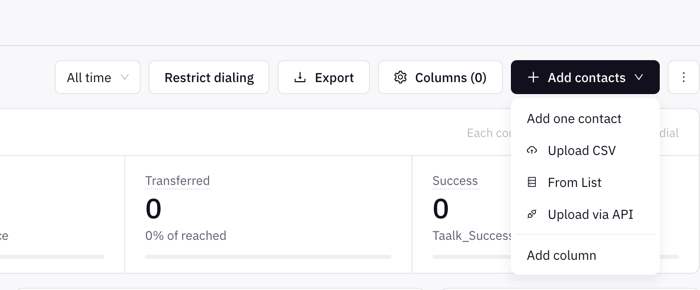
- Click Add contacts.
- Pick a source:
| Source | What it does | When you see it |
|---|---|---|
| Add one contact | Adds a single row (First Name, Last Name, Phone, Email) straight into the table. | Always |
| Upload CSV | Imports a .csv file. | Always |
| From List | Copies contacts from an existing contact list. Pick the list, check the preview, click Import. | Always |
| Upload via API | Shows a ready-to-use curl request for this campaign. Replace <TAALK_API_KEY> with one of your keys (the panel lists their names), or click Create API Key to make one and see it in the request. A new key is shown only once, so copy it then. |
When the Taalk API Token integration is on |
| Salesforce | Syncs contacts from a Salesforce object. | When your workspace is connected to Salesforce |
- For Upload CSV, drag the file onto the box or click it. Taalk shows Parsing, Uploading (with a running count) and Finished.
Every CSV and list import is shuffled, so the new contacts are dialed in random order.
CSV columns
Name, phone and email columns are matched without regard to case. The Taalk_ prefix must be written exactly like that.
| Your column | Saved as |
|---|---|
name, fname, first_name, firstname, first name |
First name |
lname, last_name, lastname, last name |
Last name |
Any column whose name contains phone |
Phone |
Any column whose name contains email |
|
Any column that starts with Taalk_ |
A custom field your agent can use, for example Taalk_State |
- Each row needs a first name and a phone or email. Rows without them are skipped. If no row qualifies you see "Cannot find any valid phone and name."
- Other columns are ignored. Prefix anything you want to keep with
Taalk_. - Custom field names are case-sensitive:
Taalk_StateandTaalk_stateare two different fields. Use them in scripts as{Taalk_State}; see Script Variables. - Columns whose name ends in
date(or contains_date_) are read as dates. - You can add a custom column later from Add contacts › Add column. The name gets the
Taalk_prefix automatically.
Tip: save the file as .csv. Excel files (.xls, .xlsx) can be picked, but only .csv is imported.
Phone format
- US numbers: any common format works.
(704) 111-2345,704-111-2345,+1 704 111 2345and17041112345are all saved as7041112345. - Other countries: start with
+and the country code. - A number must have 10 to 20 digits. An extension can follow a comma or
ext.. - A row with an invalid phone but a valid email is kept as an email-only contact.
Email-only contacts
A contact can have an email and no phone. Email-only contacts are reached by email steps in Multi-Channel or Email-Only campaigns. See Engagement Strategy.
Duplicates and updates
- Inside one file: only the first row for a phone (or email) is kept.
- Already in the campaign: Taalk matches by phone, or by email when there is no phone. The existing contact is updated with the new name and
Taalk_fields. Its attempts, answers and DNC status are kept. An upload never removes a contact from DNC.
Retry for Duplcated Contact Upload (revived contacts)
Turn this on to give re-uploaded contacts a fresh start. Go to the campaign Settings › Contact restrictions.
| Setting | Default | What it does |
|---|---|---|
| Retry for Duplcated Contact Upload | Off | A re-uploaded contact has its attempts reset to 0 and its added date set to now. In playbook campaigns it starts the playbook again. |
| Accept Duplicated Contact after | Always | Only reset contacts that were first added at least this long ago (1 Day to 6 Months). |
| Max retry for duplicated contact | Empty (no limit) | How many times one contact can be uploaded again and still be reset. |
A reset contact is called a revived contact. It counts as "still dialable" in the Contact funnel and as "Not called yet" in Attempts per contact. If it was called in the last 8 days, it waits for its normal retry time before it is dialed again.
Revive never overrides DNC or opt-outs.
DNC flagging at upload
When the campaign's DNC Detection is set to include your Company DNC (or Company + FTC DNC), every uploaded phone is checked and matches are added as DNC. With AI Auto DNC, numbers are not checked at upload; only people who ask to stop are flagged. See DNC Detection.
Contact Expiration
In Settings › Contact restrictions, Contact Expiration (Never, 1 Day to 6 Months) stops dialing contacts once they are older than the period. Age is measured from the date they were added, or from the Expiration Date Field you pick (shown once the campaign is saved). Expired contacts stay in the campaign; tick Exclude Expired in the table to hide them.
Upload via API
Post leads as they arrive with POST /api/campaign2s/{id}/contacts and an append list. Duplicate and DNC rules are the same as for CSV. See Contacts API.
Salesforce
Connect Salesforce first in Developer › Integrations. Then Add contacts › Salesforce lets you pick the object and the fields to import, and Sync Contacts. See Salesforce Integration.
Troubleshooting
| Problem | Fix |
|---|---|
| "Cannot find any valid phone and name." | Add a first name column and a phone or email column. |
| Excel file shows Finished but nothing was added | Save it as .csv and upload again. |
| Custom field is empty in the script | Check the column starts with Taalk_ and the case matches. |
| Re-uploaded contacts are not dialed again | Turn on Retry for Duplcated Contact Upload and check Accept Duplicated Contact after. |
| Upload via API or Salesforce is missing | Turn on the Taalk API Token integration, or connect Salesforce in Developer › Integrations. |