 Taalk Help Center
Navigating the Taalk Console
Where everything lives in Taalk: the sidebar, the workspace and account menus, and the top bar. Each page links to the article that covers it.
The sidebar
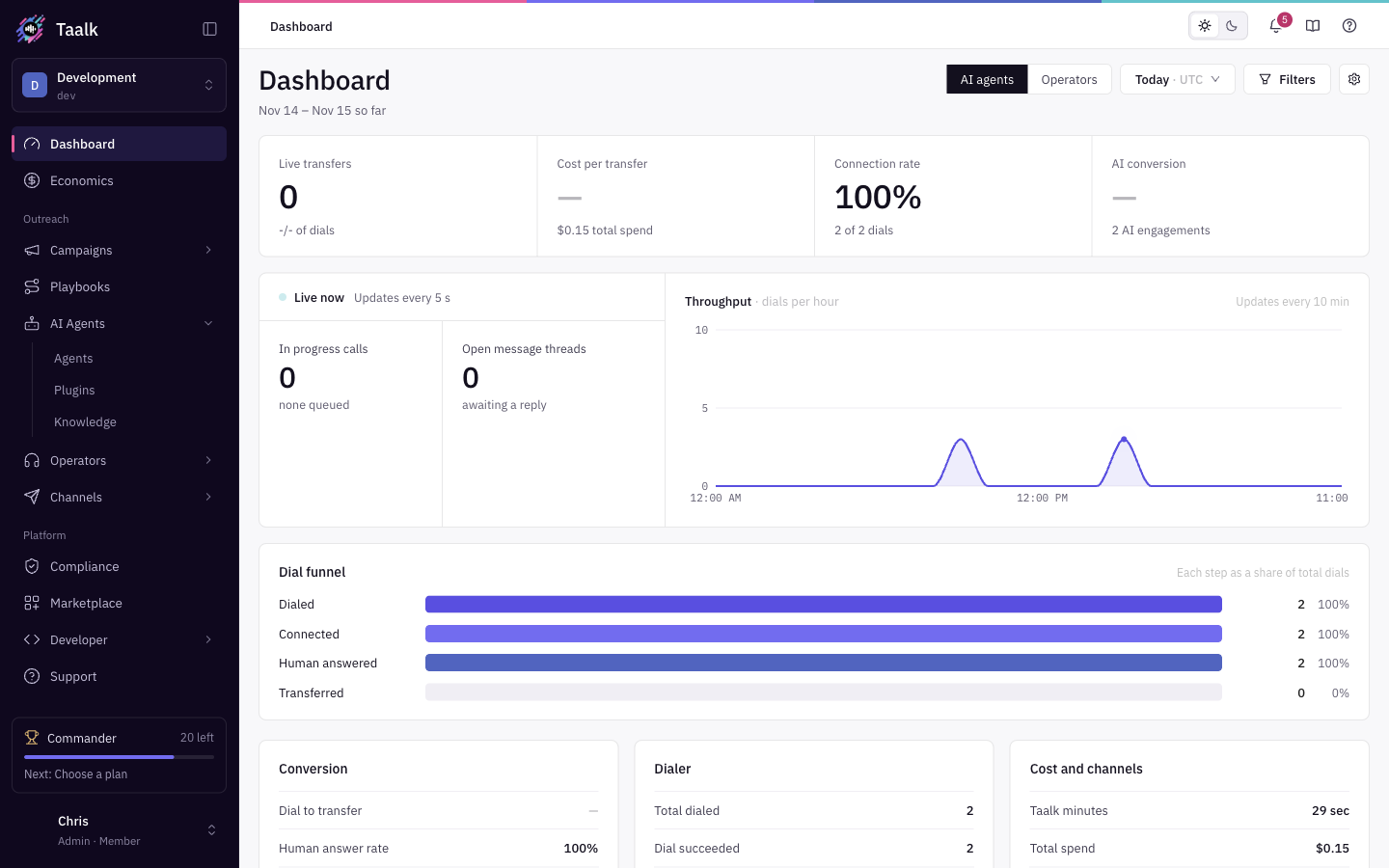 The sidebar has a home section and two groups, Outreach and Platform. Items with an arrow open a list of sub-pages. Click the panel icon at the top to collapse the sidebar to icons, and click the logo to expand it again.
Home
| Page | What it's for | Learn more |
|---|---|---|
| Dashboard | Live and historical results. Switch between the AI agents and Operators views. | Dashboard Overview |
| Economics | Cost and value per campaign and agent. Needs the Economic Analysis add-on. | Campaign Economics |
Outreach
| Item › page | What it's for | Learn more |
|---|---|---|
| Campaigns › Campaigns | Create, launch and report on outbound campaigns. | Campaign Basics |
| Campaigns › Contacts | Your contact lists and imports. | Uploading Contacts |
| Playbooks | Follow-up sequences of texts, emails and calls. | Playbooks |
| AI Agents › Agents | Build, test and version your AI voice agents. | AI Agents Overview |
| AI Agents › Plugins | Actions your agents run during or after a call (webhooks, lookups, bookings). | Plugins |
| AI Agents › Knowledge | Documents and FAQs your agents can draw on. | Agent Knowledge |
| Operators › Lines | Which numbers ring and who answers (Taalk Phone). | Taalk Phone for Admins 2 |
| Operators › Team | Invite and manage operators. | Taalk Phone for Admins 3 |
| Operators › In-call forms, Post-call forms, Coaching, Transfer targets | What operators see during and after a call, and where they can transfer. Grouped under Call experience. | Taalk Phone for Admins 5 |
| Operators › Settings | Ringing, transfers, availability and AI settings for Taalk Phone. | Taalk Phone for Admins 4 |
| Channels › Phone numbers | Your caller IDs and inbound numbers. | Phone Numbers |
| Channels › Email providers | Connect the mailbox your playbooks send from. | Email Provider Setup |
| Channels › Chatbot | Try your website chatbot. Only shown when the chatbot is turned on for your workspace. |
Without Taalk Phone, Operators is a single item. It opens a page where you can try Taalk Phone or get the add-on (Taalk Phone for Admins 1).
Platform
| Item › page | What it's for | Learn more |
|---|---|---|
| Compliance | Tabs Company DNC, Caller blocker, TCPA check and Registration. | DNC and Compliance, Compliance Setup |
| Marketplace | Add-ons and templates. Segments: All, Essentials, Integrations, Support, Agents, Plugins, Playbooks, Knowledge. | Marketplace and Add-ons |
| Developer › Integrations | API access, connected services (CRM and calendar) and your own phone carrier. | Integrations Overview |
| Developer › API docs | The interactive API reference. | API and Developer Access |
| Developer › Logs | Every Taalk Phone event, including webhook and lookup requests. Only with Taalk Phone. | Taalk Phone for Admins 6 |
| Developer › Creator center | Publish your own templates to the Marketplace. Only for developer accounts. | Marketplace Templates |
| Support | My Tickets and Submit Ticket. | Support Tickets |
Workspace menu
Click your workspace name at the top of the sidebar.
| Item | What it does | Learn more |
|---|---|---|
| Switch workspace | Move to another workspace you belong to. Shortcut: ⌘K. Only shown if you have more than one. | |
| Manage members | Invite teammates, set roles, see pending invites. | User Management |
| Manage workspaces | Open your workspace › Company Detail for notifications and workspace settings. | Workspace Settings |
There is no separate Settings menu. Workspace settings live under Manage workspaces.
Account menu
Click your name at the bottom of the sidebar. It shows your role under your name.
| Item | Who sees it | What it does |
|---|---|---|
| Profile | Everyone | Your details, plus Security and Login History tabs. |
| Business registration | Admin Users | Opens Profile › Business registration (Compliance Setup). |
| Subscription | Admin Users | Plan, balance, auto-recharge, cards and invoices (Billing and Subscriptions). |
| Sign out | Everyone | Signs you out. |
Top bar
The left side shows where you are (for example Outreach / Campaigns / Campaigns). Click a parent to go back up. The right side has:
| Control | What it does |
|---|---|
| Plan pill | On a paid plan: your plan name and balance in dollars. Click it to open Subscription. In the free sandbox it reads Test balance · $n, your remaining sandbox balance, and opens the Go live dialog. |
| Update available | Appears when a new version is out. Click to reload. |
| Light / Dark | Switch the theme. |
| Bell | What's New: recent releases, with a badge for unread items (What's New and Tours). |
| Documentation (book icon) | Opens this knowledge base in a new tab. |
| Help (question icon) | Opens the help assistant, which knows which page you're on. |
Get started card and Quest Hub
At the bottom of the sidebar, above your name:
- While setup is in progress, the Get started card shows your checklist progress (for example 3 of 8 done) and the next step. If you hid the checklist, click Show checklist to bring it back (Get started checklist).
- Once the checklist is done or turned off, the card shows your Quest Hub level, the quests left and the next one. Click it to open the Quest Hub (What's New and Tours).
On a phone
Tap the menu icon at the top left to open the sidebar. Four tabs run along the bottom: Overview, Calls, Campaigns and Economics. Documentation and Help are hidden on small screens (Mobile App).
What you see depends on your plan and role
| You are | What's different |
|---|---|
| In the free sandbox | Channels › Phone numbers is greyed out and Developer › Integrations is hidden until you go live. The workspace menu has no Manage members or Manage workspaces. See Is There a Free Trial?. |
| Admin User | Everything on your plan, plus Subscription and Business registration in the account menu. |
| User | The same pages, but view-only on most settings. No Subscription or Business registration. |
| Voice User | Taalk Phone only. The sidebar shows Operators, Marketplace and Support. No workspace management, Subscription or Business registration. |
[Confirm] Voice Users can open Marketplace, Support and Profile without being sent back to the Operators pages.
Roles are set in Workspace menu › Manage members (User Management).