 Taalk Help Center
User Management: Members and Roles
Invite teammates into your workspace, give each one a role, and see who hasn't joined yet.
Go to Workspace menu › Manage members (the menu under your workspace name at the top of the sidebar). Only an Admin User can open it. The menu item appears once your workspace is live; it isn't there in the free sandbox.
Roles
| Role | What they can do |
|---|---|
| Admin User | Everything in the workspace: campaigns, agents, phone numbers, business registration, members, and Account menu › Subscription for billing. The person who created the workspace is an Admin User. |
| User (default) | Use the console, build and edit agents, playbooks, plugins and knowledge, and read every report. Can't create, edit, delete or restore campaigns, edit business registration, buy phone numbers, manage members or open Subscription. |
| Voice User | For Taalk Phone teams. Sees only Operators, Marketplace and Support in the sidebar. No Dashboard, campaigns, agents, compliance or member management. |
When a User tries a restricted action, Taalk shows "No access to modify the object." or asks them to contact their admin. Workspace emails meant for admins (for example billing notices) go to Admin Users.
Invite teammates
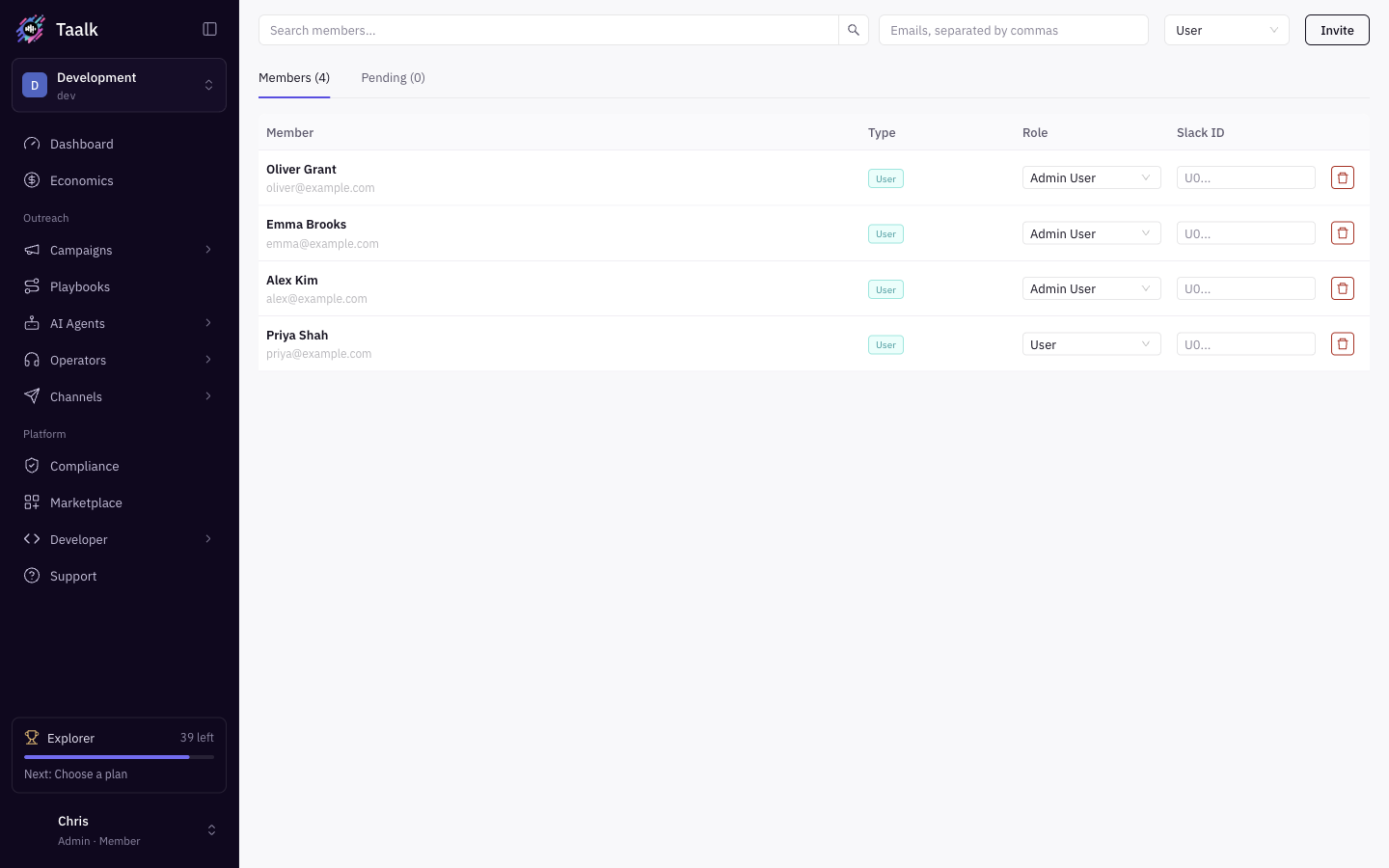
Type up to 20 emails, pick a role and click Invite. You can also use Invite teammates in the Workspace menu. For the full walkthrough, following up on pending invites and troubleshooting, see Workspace Admin Guide 2: Invite Your Team. New to running a workspace? Start with Workspace Admin Guide 1: Your First Day as Admin.
The Members tab
| Column | What it shows |
|---|---|
| Member | Name and email |
| Type | User for your people. Taalk staff who help you show as System Admin or Associate Developer. |
| Role | Change it from the drop-down; it saves right away |
| Slack ID | Used by Taalk to tag a person in Slack alerts. Taalk support can set it for you. |
| Delete icon | Removes the person from this workspace. Their account and your data stay. |
Use Search members... to filter by name.
The Pending tab
Every invite that hasn't been accepted, with Email, Role, Invited by, Sent (and how many times it was resent), Expires and Status (Waiting or Expired).
- Resend invitation emails a fresh link, valid for another 14 days.
- Revoke cancels the invite. The link in the email stops working.
When someone signs up from the link, they move from Pending to Members on their own.
Guided quest: Bring Your Team Aboard
Open Quest Hub from the bottom of the sidebar and pick Bring Your Team Aboard. It walks you through opening Members, a short tour of the Members and Pending tabs, inviting a teammate, checking who is pending and resending a stale invite. See What's New, Tours and Help.
Operators on Taalk Phone
Operators are invited separately, from Operators › Team. See Taalk Phone for Admins 3.
Sign-in options
Members can sign in with email and password, or with Google, Microsoft, Salesforce or Slack. The role is the same however they sign in. See Sign-in Options.