 Taalk Help Center
Taalk Phone for Admins 1: Go-Live Guide
This guide takes you from a new Taalk Phone account to your first live call. Each step links to a more detailed article in this series:
- Go-live guide (this article)
- Lines: which numbers ring, and who answers
- Inviting and managing operators
- Call handling: ringing, transfers and availability
- Call experience: scripts, coaching, forms and transfer targets
- Watching your team: dashboard, call log and reports
- Go-live day runbook and troubleshooting
Everything for Taalk Phone is under Operators in the left menu: Lines, Team, the Call experience pages and Settings.
Before you start
- Taalk Phone is active on your account. If Operators shows Get Taalk Phone, buy the add-on first. Each operator uses one seat.
- Your server is live. In Operators › Settings › Overview, the checklist shows Server is live. Until then it says Provisioning your dedicated server. You can still set up lines and invite people in the meantime; invites go out once the server is ready.
- At least one phone number is reserved for Taalk Phone. In Channels › Phone numbers, open the number and turn on Is reserved for Taalk Phone.
The go-live checklist
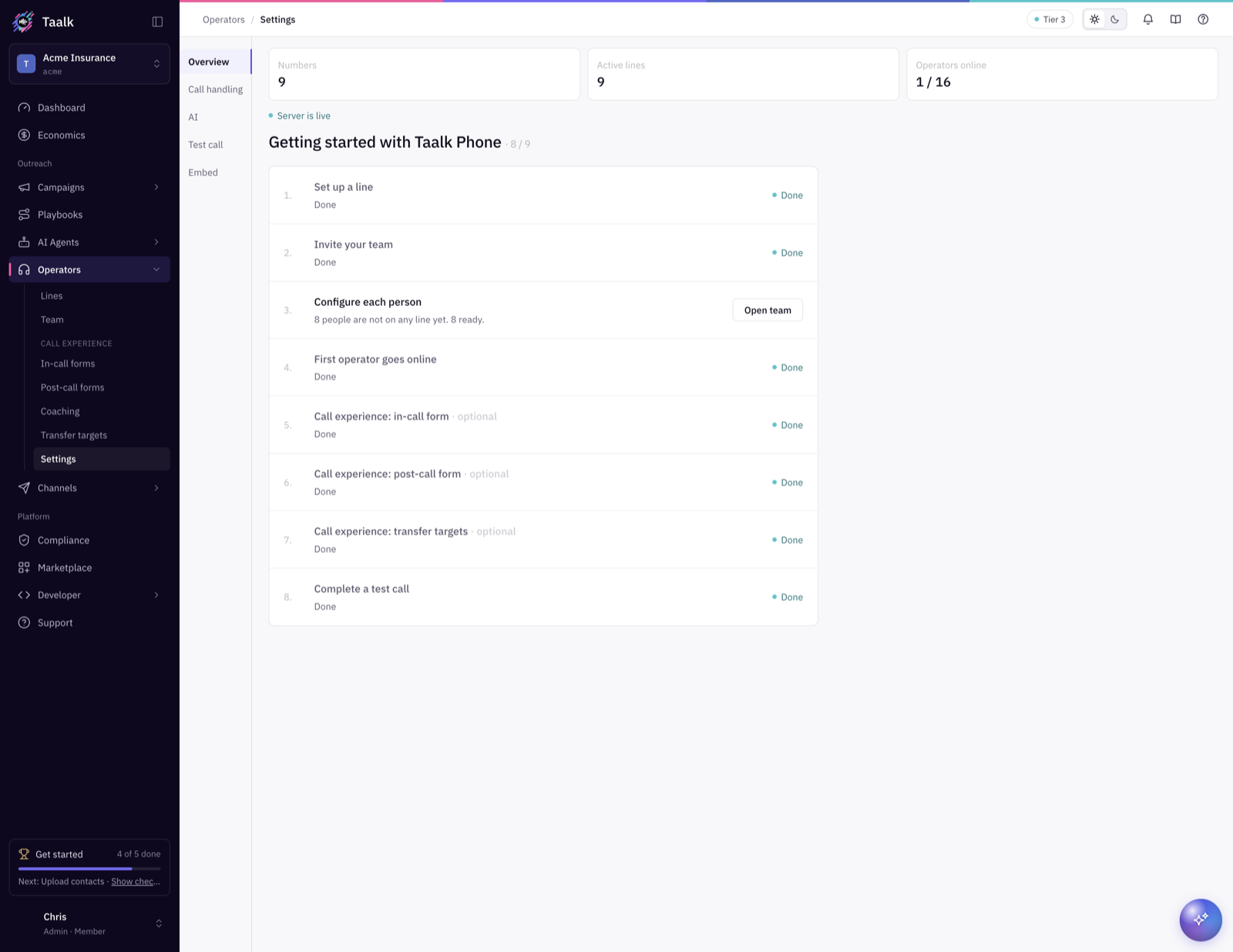
Operators › Settings › Overview shows Getting started with Taalk Phone with the same steps. They tick off as you go.
| # | Step | Where | Article |
|---|---|---|---|
| 1 | Set up a line: attach a number and choose who answers | Operators › Lines › New line | 2 |
| 2 | Invite your team | Operators › Team › Invite operators | 3 |
| 3 | Configure each person: fill in any properties your lines need | Operators › Team › the operator | 3 |
| 4 | Choose call handling: transfers, wrap-up time, missed-call rule | Operators › Settings › Call handling | 4 |
| 5 | Call experience (optional): in-call form, coaching, post-call form, dispositions, transfer targets | Operators › Call experience, and on the line | 5 |
| 6 | First operator goes online | The operator signs up, finishes the welcome steps and clicks Go online | Operator series |
| 7 | Complete a test call | Operators › Settings › Test call, or call the number from your phone | 7 |
A 30-minute setup for a simple team
If everyone on your team answers the same number:
- Operators › Lines › New line. Pick your number under Taalk Phone numbers, name the line (for example "Sales line"), and under Who answers choose Everyone. Save.
- Operators › Team › Invite operators. Paste everyone's email, pick the line, and click Send Invites.
- Operators › Settings › Call handling. Check the transfer setting (Off, Cold or 3-way) and Wrap-up time.
- Share Taalk Phone for Operators 1: Set Up on Your First Day with your team.
- When the first operator is online, call your number from your own phone and answer it in Taalk Phone.
You're live. Add scripts, post-call forms and transfer targets once calls are flowing.
What callers experience
- The caller talks to your AI agent, or calls your Taalk Phone number directly.
- The call rings for the operators who answer that line (one or more at a time).
- While they wait, callers hear the Caller hold sound. If nobody answers, the call is offered to the next operator about every 10 seconds.
- If nobody picks up in time, an AI Operator takes the call if you turned that on. Otherwise the caller hears your goodbye message and the call ends.