 Taalk Help Center
Taalk Phone for Admins 2: Lines, Which Numbers Ring and Who Answers
A line connects one or more phone numbers to the people who answer them. Calls only reach an operator through a line, so set up a line before inviting your team.
Go to Operators › Lines.
Create a line
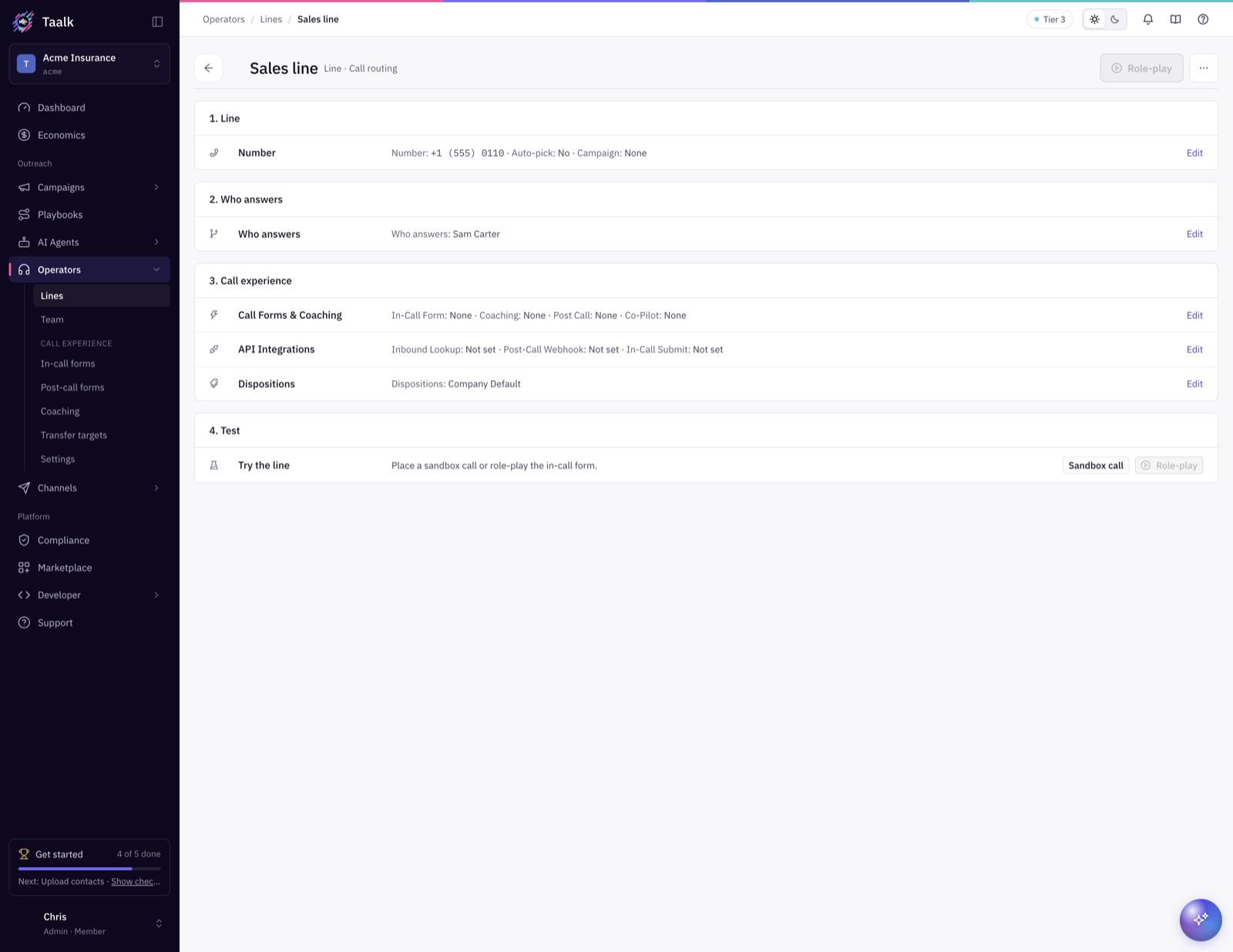
Click New line.
1. Line
- Taalk Phone numbers: the numbers this line answers. Only numbers reserved for Taalk Phone are listed (Channels › Phone numbers › Is reserved for Taalk Phone).
- Name: what your team sees, for example "Veteran line" or "Jenny direct".
- Internal Memo: notes for admins only.
- Automatically Pick Up: sends each call straight to the first matching operator instead of ringing several at once.
- Number settings (saved on the number, so every line using that number shares them):
- Inbound Campaign: callers are looked up in this campaign's contacts, so operators see who's calling.
- Ringtone: a different ring per number, so operators can tell which line is ringing.
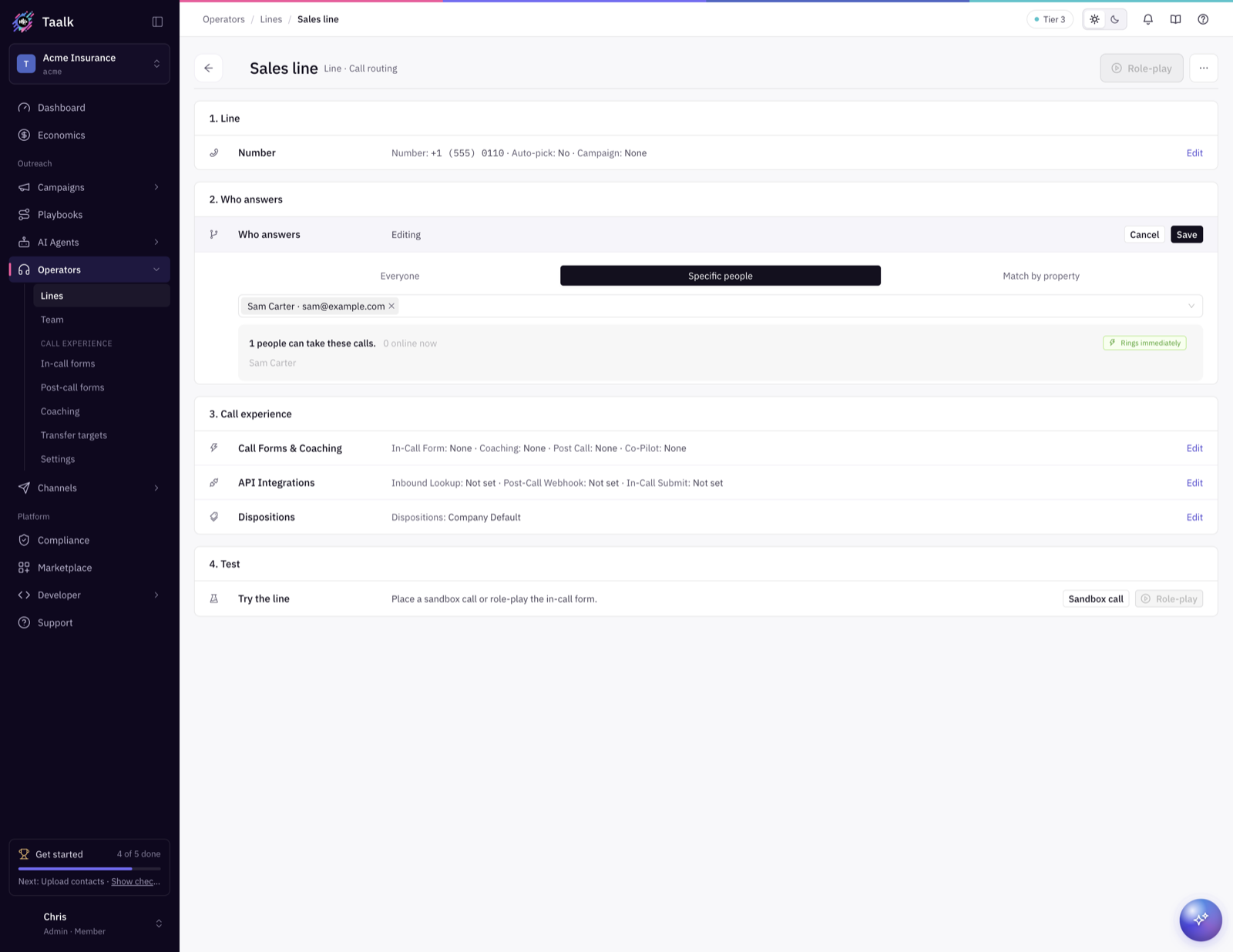
2. Who answers
| Option | Use it when |
|---|---|
| Everyone | Every operator answers this number. The simplest setup. |
| Specific people | Only named operators answer. You can type an invited email before they sign up. |
| Match by property | Operators answer calls that match their properties, for example the operator's market equals the call's Market. |
Under Match by property you build rules. Compare with Equal/Include, Regex, >, >=, < or <=, and combine with AND, OR or NOT. Every top-level rule must match.
The preview under Who answers shows how many people can take these calls, how many are online now, and whether the line Rings immediately or Waits for call data before ringing.
If you turned on AI Operator (Settings › AI), pick the AI Agent that answers this line when your team can't.
3. Call experience
- In-Call Form, Coaching Script, Post Call Setting: what operators see during and after the call (article 5).
- Co-Pilot AI Agent: live help for operators. Needs AI Listener.
- API Integrations: send call data to your systems.
- Inbound Lookup API runs when the call is routed to an operator, and its response fills in call details.
- Post-Call Webhook runs when the call or form finishes.
- In-Call Submit API runs when the operator submits the in-call form.
- Dispositions: the outcome buttons operators pick after the call (article 5).
4. Test
Sandbox call places a test call. Role-play walks through the in-call form without a call (save the line first).
Read the warnings on the Lines page
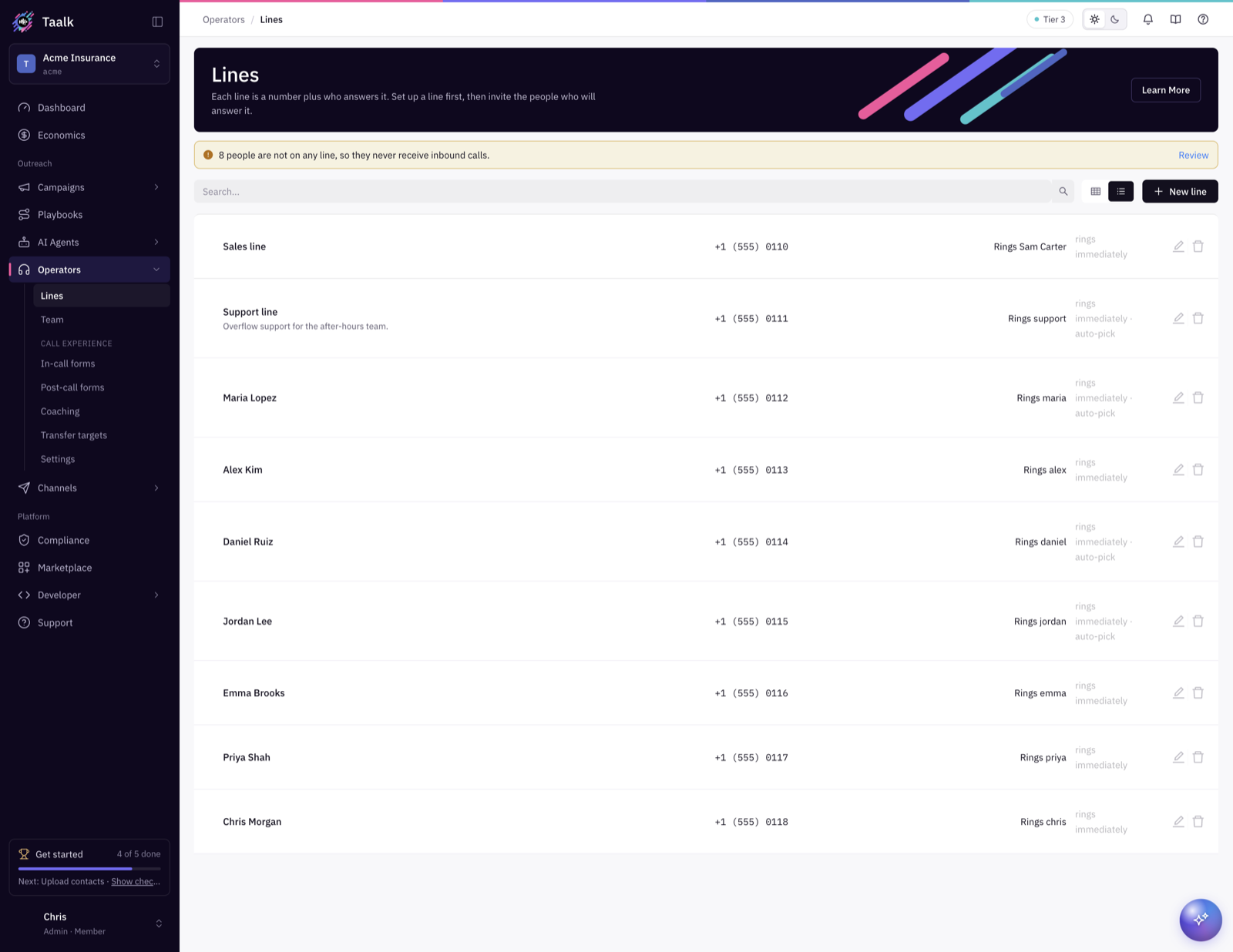
Fix these before go-live:
| Warning | Fix |
|---|---|
| Nobody receives calls on: | The line has no one who can answer. Change Who answers, or add people. |
| Rules that can never match anyone: | No operator has the property the rule needs. Fix the rule or fill in the property. |
| No number attached: | Pick a number under Taalk Phone numbers. |
| ... is shared by ...; the first line that matches handles the call. | Two lines use the same number. That's fine if intended. |
| ... people are missing properties their lines need. | Open each person and fill in Needed by your lines. |
| ... people are not on any line, so they never receive inbound calls. | Add them to a line. |
Give one operator their own number
On the operator's page, under Direct number, click Create direct line. Calls to that number ring only that person.
What lines can't do (yet)
There are no business hours or time-of-day routing, voicemail, overflow to another team, or line priority. When no one answers, the only fallback is the AI Operator, then the goodbye message.