 Taalk Help Center
Taalk Phone for Admins 3: Inviting and Managing Operators
Go to Operators › Team.
Invite operators
- Click Invite operators.
- Type or paste email addresses. Press Enter, comma or space after each.
- Optionally pick Which line(s) will they answer? For lines set to Specific people, they're added right away, so calls reach them as soon as they sign in.
- Click Send Invites.
Each person gets an email with a link to create their account. The link works for 14 days. Operators choose their own password; you never set or see it.
The button is disabled when:
- Server provisioning in progress: wait until your server is live.
- Seat limit reached: click Add Seats. The seat counter (used / limit seats) counts operators plus pending invites.
Open registration (Settings › Call handling › Team) lets anyone with your Taalk Phone link sign up without an invite. Leave it off unless you need it.
Track who's ready
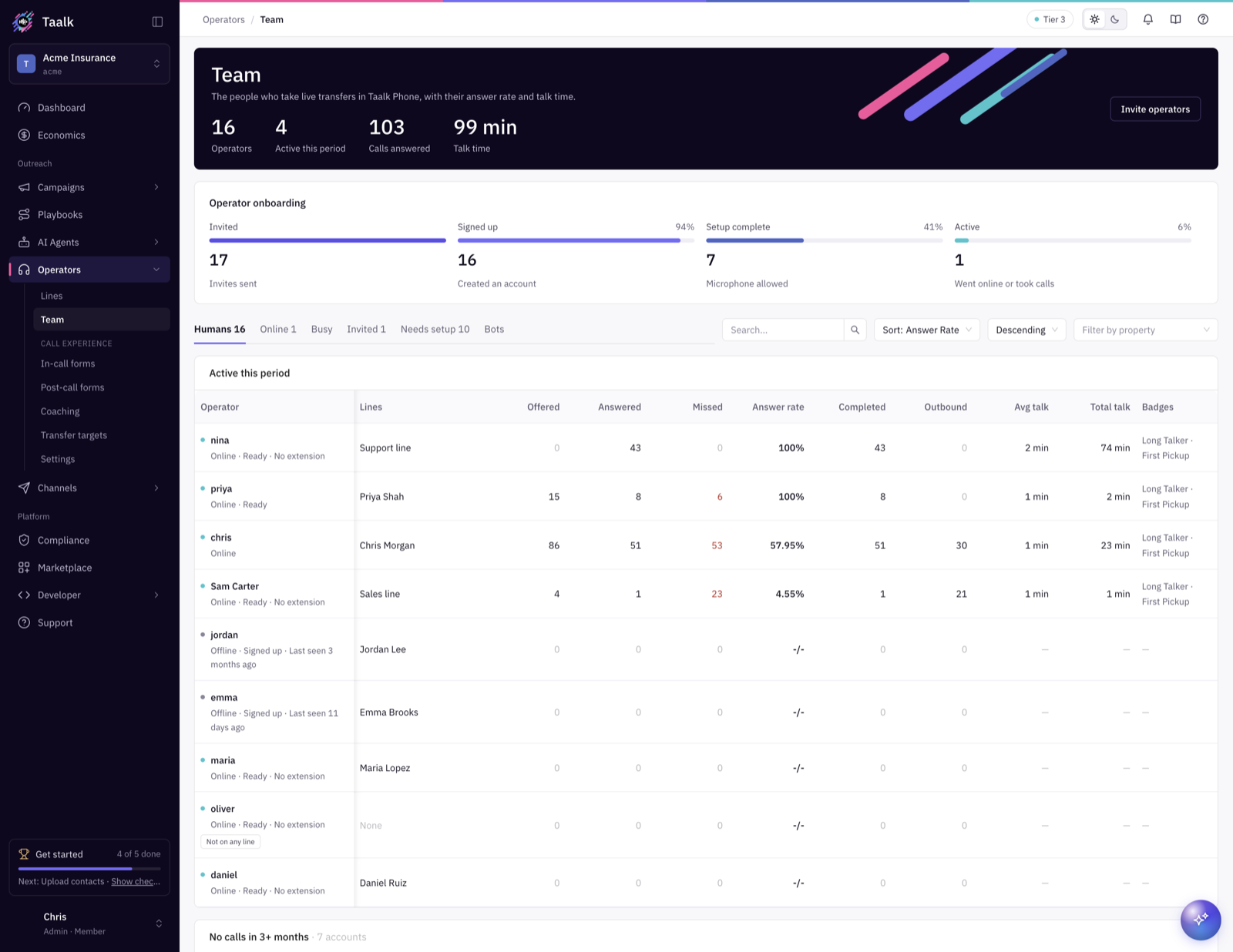
Operator onboarding shows how many people are at each stage: Invited, Signed up, Setup complete (microphone allowed) and Active (went online or took calls).
Use the tabs to find people who need a nudge:
| Tab | Who's there |
|---|---|
| Humans | All human operators |
| Online / Busy | Online now, or on a call |
| Invited | Sent an invite, not signed up yet. Resend invitation or Revoke here. |
| Needs setup | Missing properties their lines need, or microphone not allowed |
| Bots | AI operators |
Row tags show Needs setup: missing ... and Not on any line. Under the name you'll see Mic blocked, No extension or Last seen.
Set up each operator
Click an operator, then Settings:
- Display name: shown in Taalk Phone, reports and transfers.
- Rank: lower ranks are offered calls first. Use it to give your best people first pick.
- Needed by your lines: fill in these properties so the person matches the lines they should answer.
- Properties: any other values your Match by property rules use. If your own system signs operators in and sends properties, those replace these at the next sign-in.
- Lines: which lines they're on. Add to line / Remove.
- Direct number: give them their own number (see article 2).
Click Save changes.
Pause or remove someone
- Suspend operator stops all calls to them and signs them out. Resume operator brings them back. Their call history stays.
- Deleting a human operator is done by Taalk support. Suspend is the way to remove someone yourself.
AI operators
If you have the AI Operator add-on, New › Create AI Bot adds an AI operator, and you pick its Persona (AI Agent). Choosing an AI Agent on a line also creates one for you. See article 4.
Give your team the operator guide
Send new operators the Taalk Phone for Operators series, starting with 1: Set Up on Your First Day. It covers signing up, the microphone, going online, answering, transferring and wrap-up.