 Taalk Help Center
Taalk Phone for Admins 5: Call Experience, Scripts, Coaching, Forms and Transfer Targets
These control what operators see during and after a call. All are optional. Build them under Operators › Call experience, then attach them to a line in the line's Call experience section.
| What | Operators see it | Build it in | Attach it on the line as |
|---|---|---|---|
| In-call form | Script tab during the call | In-call forms | In-Call Form |
| Coaching | Coach tab during the call | Coaching | Coaching Script |
| Post-call form | Wrap up screen after the call | Post-call forms | Post Call Setting |
| Dispositions | Outcome buttons in wrap-up | On the line | Dispositions |
| Transfer targets | Transfer to panel | Transfer targets | (company-wide) |
In-call forms (the Script tab)
A step-by-step script operators follow and fill in while they talk. Click Add a Field and pick a type:
- Ask a Question with Choices, Ask a Open Question, Fill a NPS Survey
- Talk Track: text for the operator to read
- Label / Instruction
- Slide Break: starts a new step. Add Action Buttons to each step. A button can Go to slide, run a Call action (Transfer, Schedule Callback or End Call), and Pre-select disposition for wrap-up.
Use Show only when to show a field only for certain answers. Use Role-play on the line to try the form without placing a call.
When the operator clicks Save answers, the line's In-Call Submit API sends the answers to your system.
Coaching
Agent Script / Battle Card: rich text shown in the operator's Coach tab. Good for objection handling and key talking points. If AI Listener is on, operators also get live coaching cards and the transcript.
Post-call forms (wrap-up)
Same builder as in-call forms, plus:
- Form Reset Timeout: how long the operator has to finish wrap-up before it auto-saves. Default 600 seconds.
- For choice questions, DNC adds the caller to Do Not Call (and cancels pending callbacks). Success marks the call as a Taalk Success in reports.
The line's Post-Call Webhook sends the completed form and call details to your system.
Dispositions
On the line, under Dispositions, click Add a Disposition:
| Column | Meaning |
|---|---|
| Code | Short code (1-5 letters or digits) |
| Label | What operators see on the button |
| Color | Button color |
| DNC | Adds the caller to Do Not Call |
| Callback | Operator must pick a callback time |
| Note | Operator must write a note |
| Success | Counts as a success in reports |
Leave the list empty to use the company default set. Operators can't save wrap-up until they pick a disposition and fill in anything it requires. If wrap-up times out first, the call is saved as no disposition.
Transfer targets
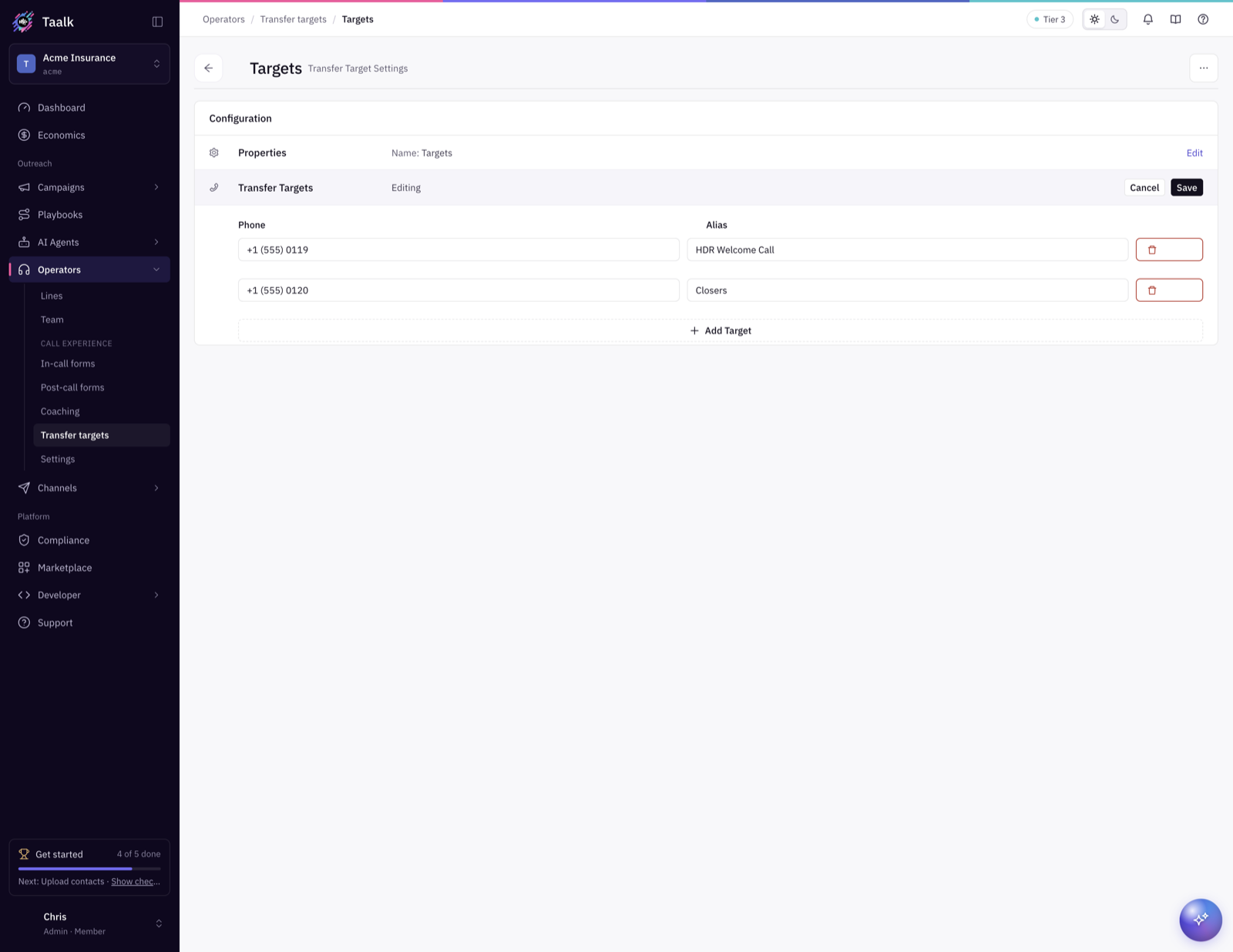
Saved numbers operators can transfer to. Click to create a group, give it a Name (for example "Billing team"), then Add Target for each Phone and Alias. Operators see these groups in the Transfer to panel, alongside Available operators (if allowed) and a box to type any number.
Whether a transfer is cold or 3-way is set in Settings › Call handling (article 4).
What operators see
The operator series explains these screens from the operator's side: 3: Answering and Handling a Call (Script, Coach, Lead and Notes), 4: Transferring a Call and 5: Wrapping Up a Call.