 Taalk Help Center
Taalk Phone for Admins 6: Watching Your Team, Dashboard, Call Log and Reports
Live view: Dashboard › Operators
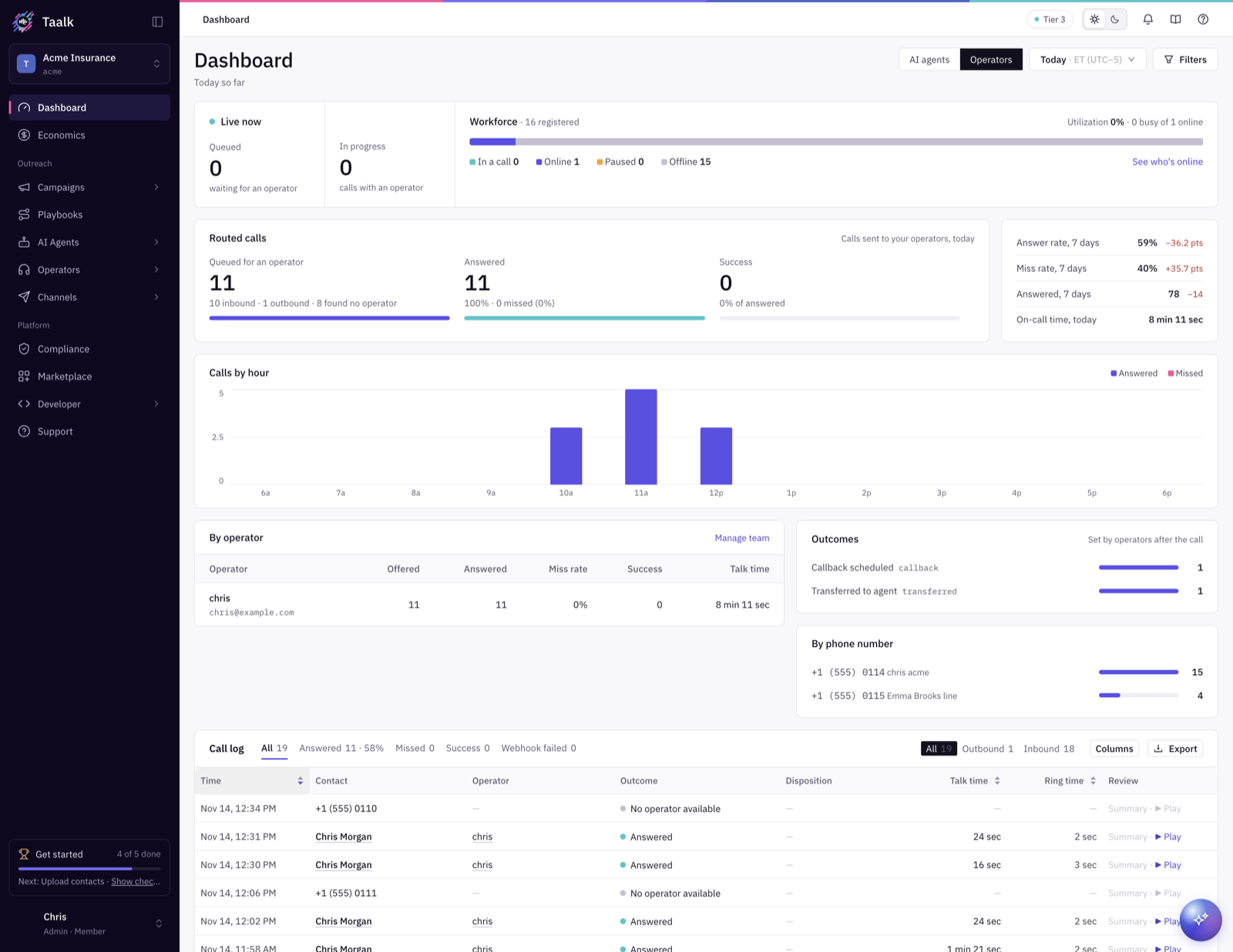
Open Dashboard and switch to Operators. Filter by phone number, Line, Operator and date range.
Live now refreshes every 5 seconds:
- Queued: callers waiting for an operator. Watch this on go-live day.
- In progress: calls with an operator right now.
- Workforce: how many operators are registered.
- Utilization: how many online operators are busy.
Who's online
Click See who's online. Each operator shows a status and how long they've been in it:
| Status | Color |
|---|---|
| In a call | Teal (3-way call when a transfer joined) |
| Online (waiting) | Violet |
| Paused (Away, wrap-up or missed calls) | Amber |
| Offline | Grey |
Setup shows Phone not opened yet, Microphone not allowed or Complete, so you can spot who can't take calls. Turn on Show offline operators to see everyone.
With AI Listener on, click the headset icon on a live call to listen in.
Results
- Routed calls: Queued for an operator → Answered → Success, plus answer rate, miss rate, answered calls and on-call time over 7 days compared with the 7 days before. A miss rate of 30% or more is highlighted.
- Calls by hour / Calls by day: answered vs missed.
- By operator: offered, answered, miss rate, success and talk time per person.
- Outcomes: the dispositions operators picked.
- By phone number: volume per number.
Call log
The Call log is under the dashboard, and on each operator's page.
- Tabs: All, Answered, Missed, Success (and Webhook failed for admins).
- All · Outbound · Inbound switch.
- Columns: Time, Contact, Operator, Outcome, Disposition, Talk time (pickup to hang-up), Ring time (how long the caller waited) and Review. Use Columns to add call-data fields.
- Export downloads a CSV of the current view.
Click a contact to see their call history. Click a call to open its details.
Call details
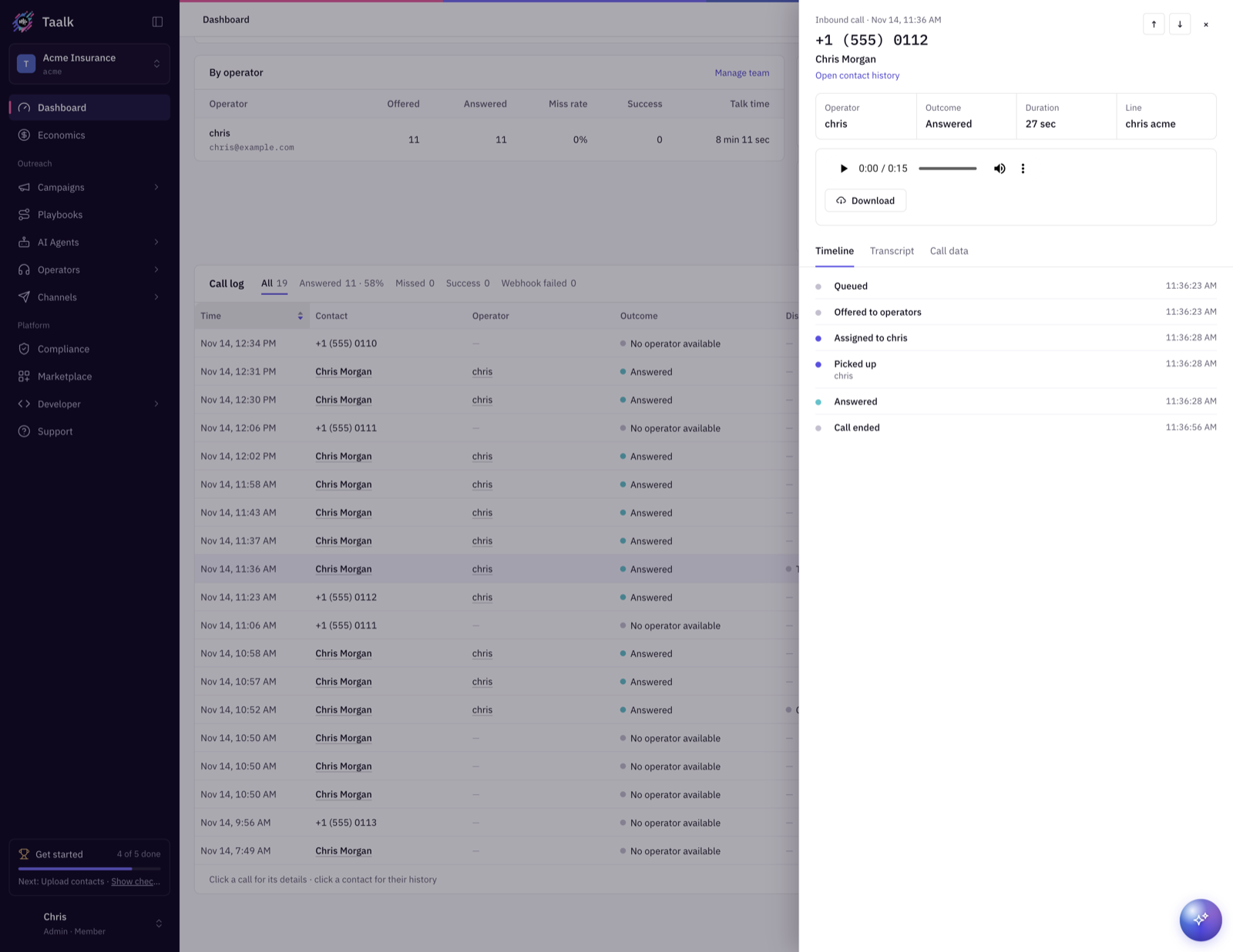
The top of the drawer shows the operator, outcome, duration and line, plus the recording for answered calls. Use ↑ / ↓ to move between calls.
Timeline tab
Who was on this call appears for transferred calls. It lists the caller, the operators and the transfer target, with when each joined and left, and how it ended: the talk time, or No answer, Busy or Failed. Use it to check that a 3-way target actually picked up, and for how long.
Below it, every event in order:
- Queued, Offered to operators, Assigned to (operator), Answered, Missed, No operator available
- Cold transfer → ... or 3-way transfer → ..., with who started it
- Transfer not answered: the cold transfer target didn't pick up, and the caller went back to the queue
- Call ended, with the duration
- Webhooks: ... delivered or ... sent. Failures show Webhook failed with Technical details and Open in Developer › Logs.
Transcript tab
The full conversation. Needs AI Listener.
Call data tab
The campaign, AI agent, call details and post-call answers.
Each operator's Performance tab
Operators › Team › an operator › Performance covers the last 7 days:
- Answer rate, Missed, Avg call duration, Talk time
- Compared with the team, sorted by answer rate
- Activity: offers, answered, missed, completed and outbound calls
- The operator's own call log
Reading answer rate: a waiting caller is re-offered about every 10 seconds, so one caller can count as several offers. Answer rate reads lower than the share of callers the operator answered. Compare operators with each other rather than against a fixed target.
Developer › Logs
Every Taalk Phone event, including webhook and lookup requests with their responses. Switch between All events, Webhooks & lookups and Failed, and filter by phone, number, operator or event type. Export Data downloads a CSV. From a call's webhook error, Open in Developer › Logs shows just that call.