 Taalk Help Center
Taalk Phone for Operators 1: Set Up on Your First Day
Taalk Phone is the phone you take live calls on. It runs in your web browser, so there's nothing to install. Your company's AI agents talk to callers first. When a caller is ready for a person, the call rings on your Taalk Phone along with what the AI already learned.
This is part 1 of the operator series:
- Set up on your first day (this article)
- Going online, away and offline
- Answering and handling a call
- Transferring a call
- Wrapping up a call
- Making calls
- Quick reference and troubleshooting
Before you start
- A computer with Chrome or Edge. Safari and Firefox work, but Chrome or Edge gives you the extension and desktop install.
- A headset with a microphone. Laptop speakers cause echo on calls.
- Your invitation email. Your admin sends it. The link works for 14 days.
1. Create your account
- Open the invitation email and click the link. The Create your account page opens, showing who invited you.
- Enter your First name and Last name. Your Work email is already filled in.
- Choose a Password. It needs 6 to 20 characters, an upper case letter, a lower case letter and a special character: # _ ! $ & + - . ; > < ? ^ | ~ The checklist under the field turns green as you go.
- Type it again in Confirm password, tick the terms box and click Create account.
If you see This invitation is no longer valid, the link expired or was revoked. Ask your admin to resend it. If you see You already have an account, click Go to sign in instead.
2. Finish the welcome steps
After you sign up, the Welcome page lists a few steps so you don't miss calls.
| Step | What it does | Required? |
|---|---|---|
| Allow your microphone | Lets callers hear you. Click Allow microphone, then Allow in the browser prompt. | Yes |
| Add the Taalk Phone extension | Reopens the phone when Chrome starts, shows incoming calls and lets you click any phone number on a web page to call it. | Recommended |
| Turn on call alerts | Shows a desktop alert when a call rings while you're in another window. | Recommended |
| Install the phone app | Opens Taalk Phone in its own window, so closing browser tabs doesn't close the phone. | Optional |
When the microphone is allowed, click Continue to Taalk Phone. You can finish the other steps later from the Never miss a call card on the phone's main screen.
Microphone blocked? In Chrome, click the site settings icon to the left of the address bar, set Microphone to Allow and reload the page. The phone also shows steps for your browser.
3. Go online
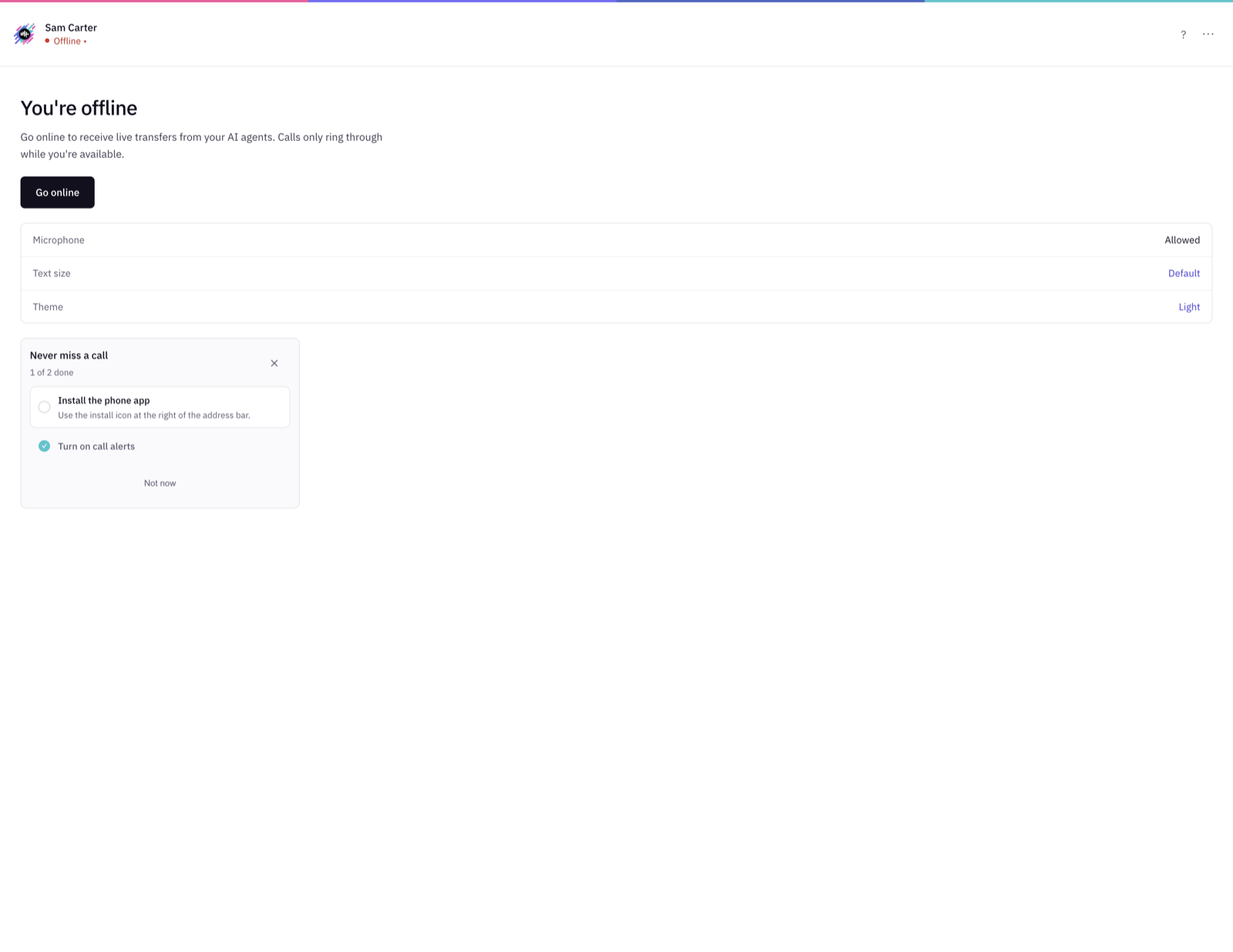
You start Offline, which means no calls ring. Click Go online. The status at the top changes to Available, and the main screen says Listening for your next call.
That's it. You're ready to take calls.
Signing in next time
Open your company's Taalk Phone link, enter your Work email and Password, then click Sign in. Forgot your password? Click Forgot password?, enter your email, and use the link we send you to set a new one.
Good habits from day one
- Keep Taalk Phone open in its own window (install the app) so you don't close it by accident.
- Use one window only. If you open the phone in a second window, the newer one takes over and the old one goes offline.
- Don't let your computer sleep while you're online. A sleeping computer stops the phone, and you go offline after about 2 minutes.
- Go offline when you leave. Calls only ring when you're available, so callers go to someone who's there.
Next: Taalk Phone for Operators 2: Going Online, Away and Offline.